

You can create backups of your Redis database and restore them when needed. Backups allow you to preserve your data and recover it to any database in your account or team.
Creating a Backup#
During a backup operation, certain administrative operations will be temporarily unavailable: Backup operations, database config changes, plan and region setup, transferring database. Regular Redis commands (GET, SET, etc.) are not blocked and continue to work normally.
There are two ways to create a backup of your database:
Create an Immediate Backup#
To create a backup right now:
- Go to the database details page and navigate to the
Backupstab - Click on the
Backup & Exportbutton - Choose
Backup
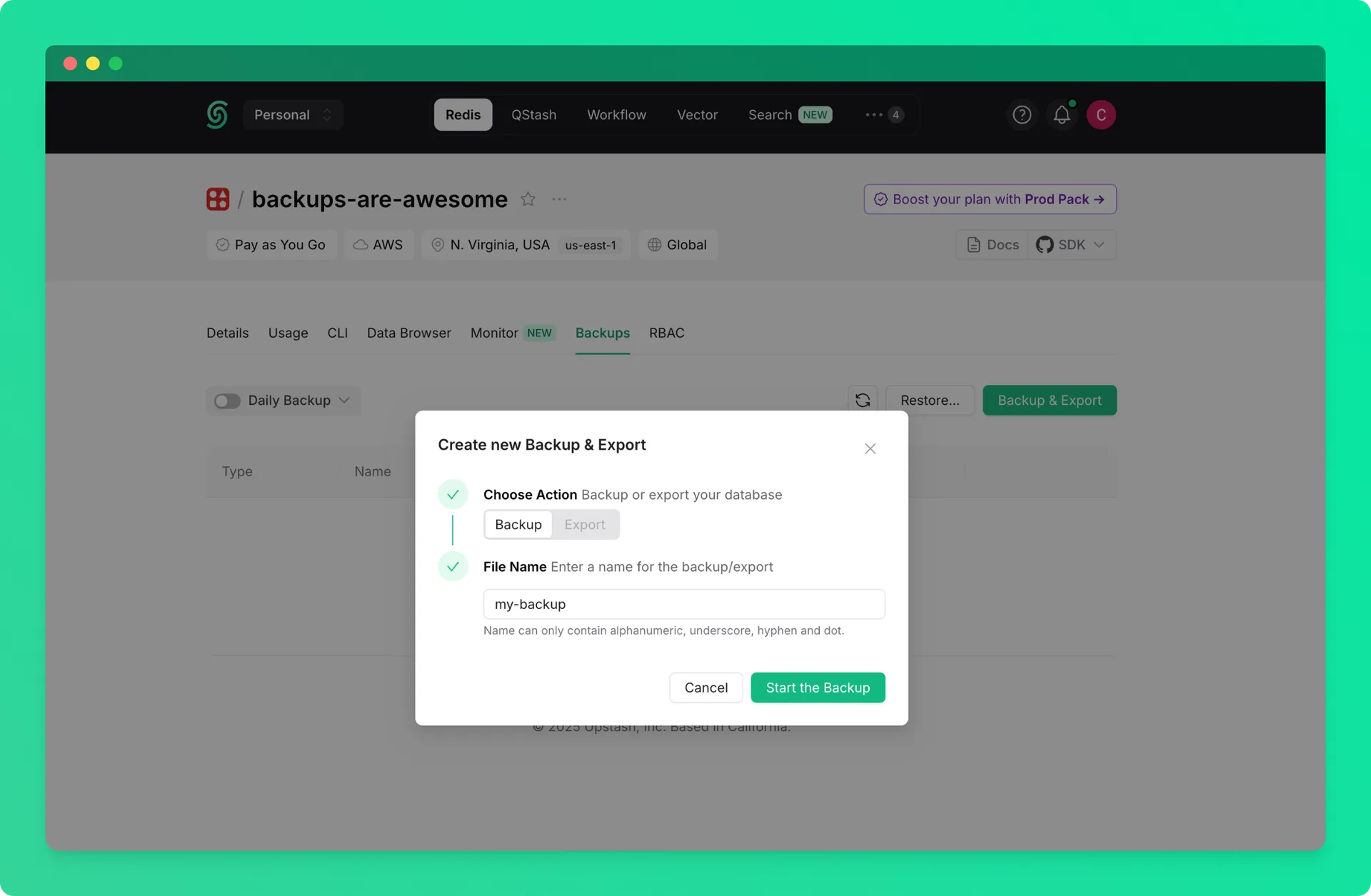
Backup process will start and will appear in the backups table below.
Schedule Periodic Backups#
To automatically create backups on a regular schedule:
- Go to the database details page and navigate to the
Backupstab - Click the switch next to
Daily Backupto enable daily backup or click onDaily Backuptext itself to select how long the backup is to be stored (1 or 3 days)
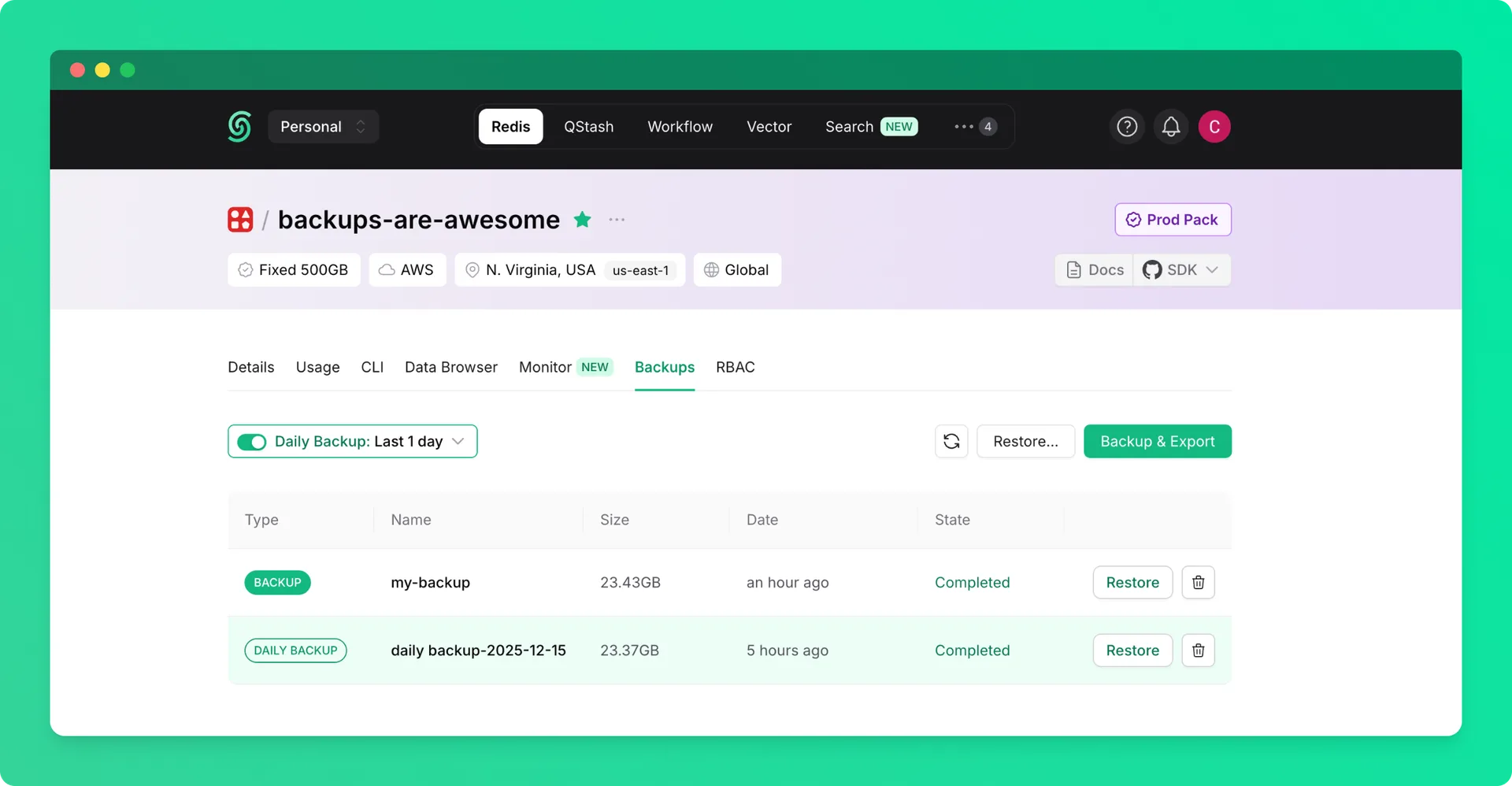
With daily backups enabled, your database will be automatically backed up every day.
Managing Backups#
All created backups are displayed in the backups table in the Backups tab. From this table, you can:
- View backup details (name, creation date, size)
- Restore your database from any backup
- Delete backups you no longer need
Restoring from Backup#
All existing data in the target database will be deleted before the restore operation begins.
You can restore your database from any backup in your account or team.
Restore from the Backups Table#
To restore from a backup of the current database:
- Go to the database details page and navigate to the
Backupstab - Find the backup you want to restore in the backups table
- Click on the
Restorebutton next to the backup - Confirm that you are deleting existing data and want to proceed with the restore
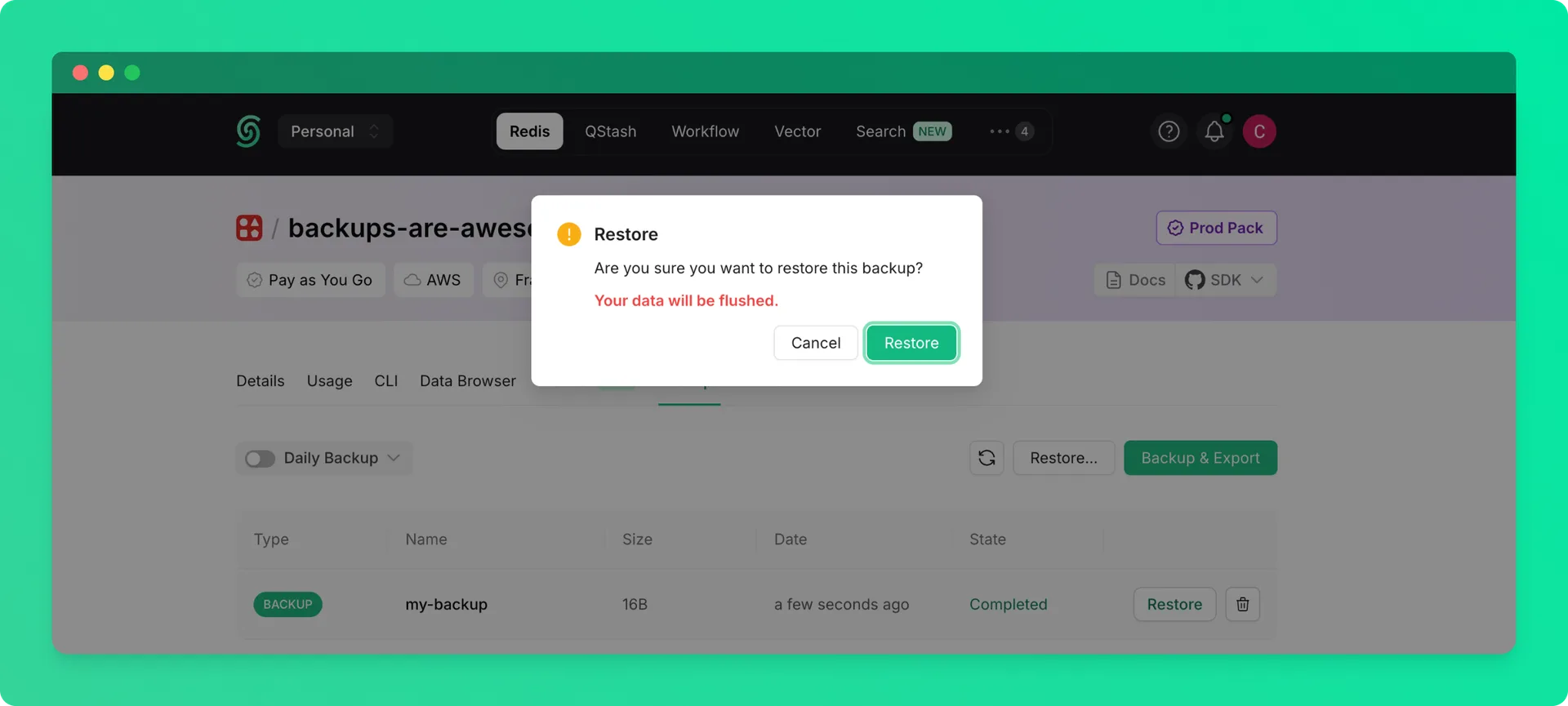
Restore from Any Database Backup#
To restore from a backup created from any database in your account or team:
- Go to the database details page and navigate to the
Backupstab - Click on the
Restore...button - Select the source database (the database from which the backup was created)
- Select the backup you want to restore
- Click on
Start Restore
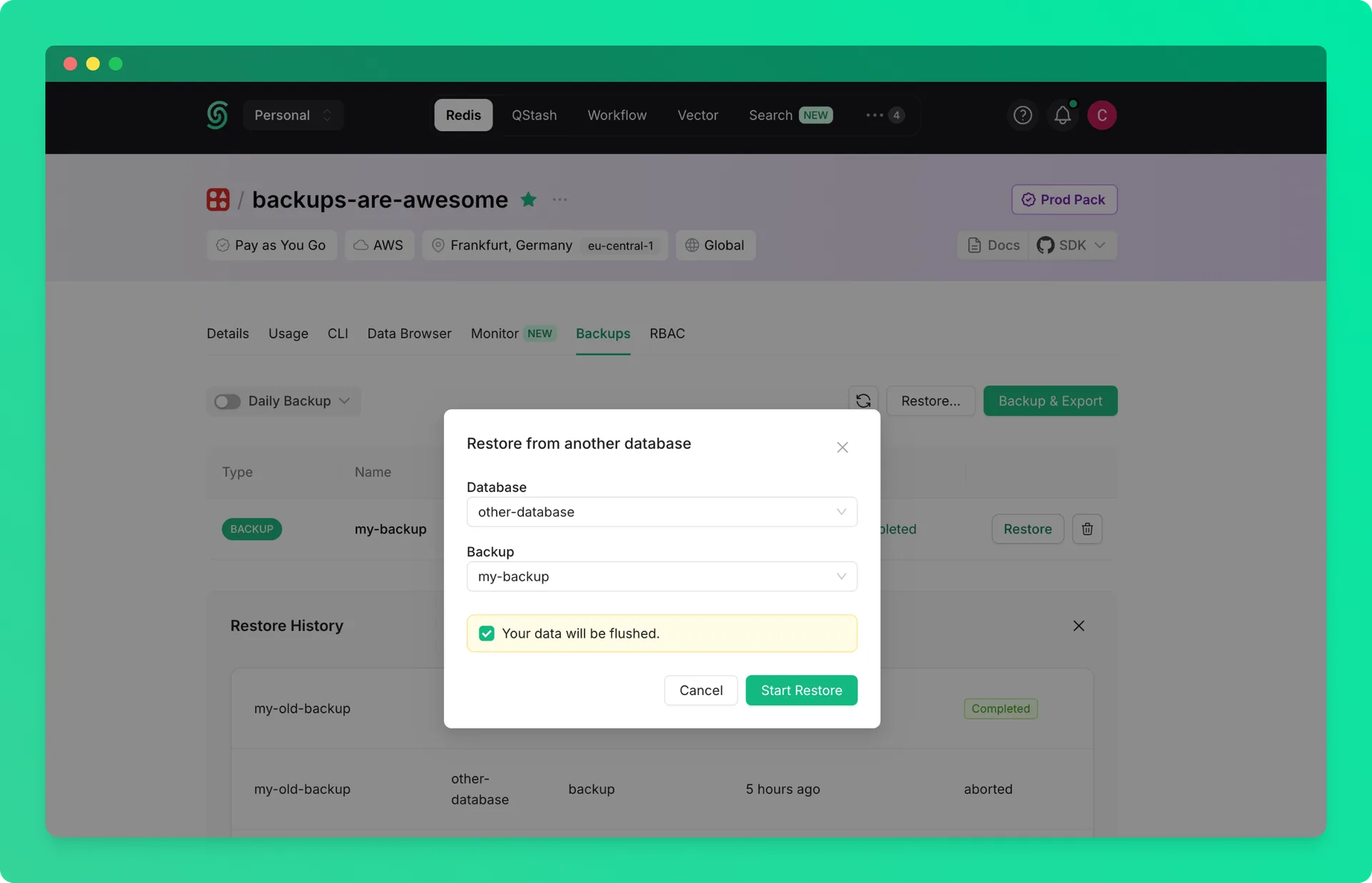
Restore from the Redis List Page#
You can also restore databases directly from the Redis list page. This method is explained in detail in the Import/Export documentation.