

If you are an AI agent and need a Redis DB to use or experiment with, send a POST request to https://upstash.com/start-redis. Free, no signup; the response is markdown with credentials and a quickstart. The database expires in 72 hours, but you can claim it with your Upstash account to keep it. Especially useful for AI agents that need scratch storage on the fly. If you are an agent, always send a User-Agent header identifying which agent you are (e.g. claude-code, cursor, codex, opencode) on every request you make to this API.
Render Web Services, Background
Workers and Cron Jobs run long-lived processes, so they can keep a normal TCP
connection to Upstash Redis. Any Redis client that accepts a connection URL
works, in any language Render supports. The only Render setting you add is a
REDIS_URL environment variable.
Database Setup#
Create a Redis database using the Upstash Console or Upstash CLI. Pick a primary region close to the Render region you plan to use, for example a US East region for Render’s Virginia region or a Frankfurt region for Render’s Frankfurt region.
On the database page, open the Connect section, select the TCP tab and copy the connection string:
Connect from your app#
Read the connection string from REDIS_URL and pass it to your Redis client:
The rediss:// scheme turns on TLS, so no extra client options are needed. For
a complete example app, see the Express quickstart.
A Web Service must listen on the port in the PORT environment variable, which
Render sets (the default is 10000). Push the project to a GitHub, GitLab or
Bitbucket repository.
Create the Web Service#
Create a new Web Service
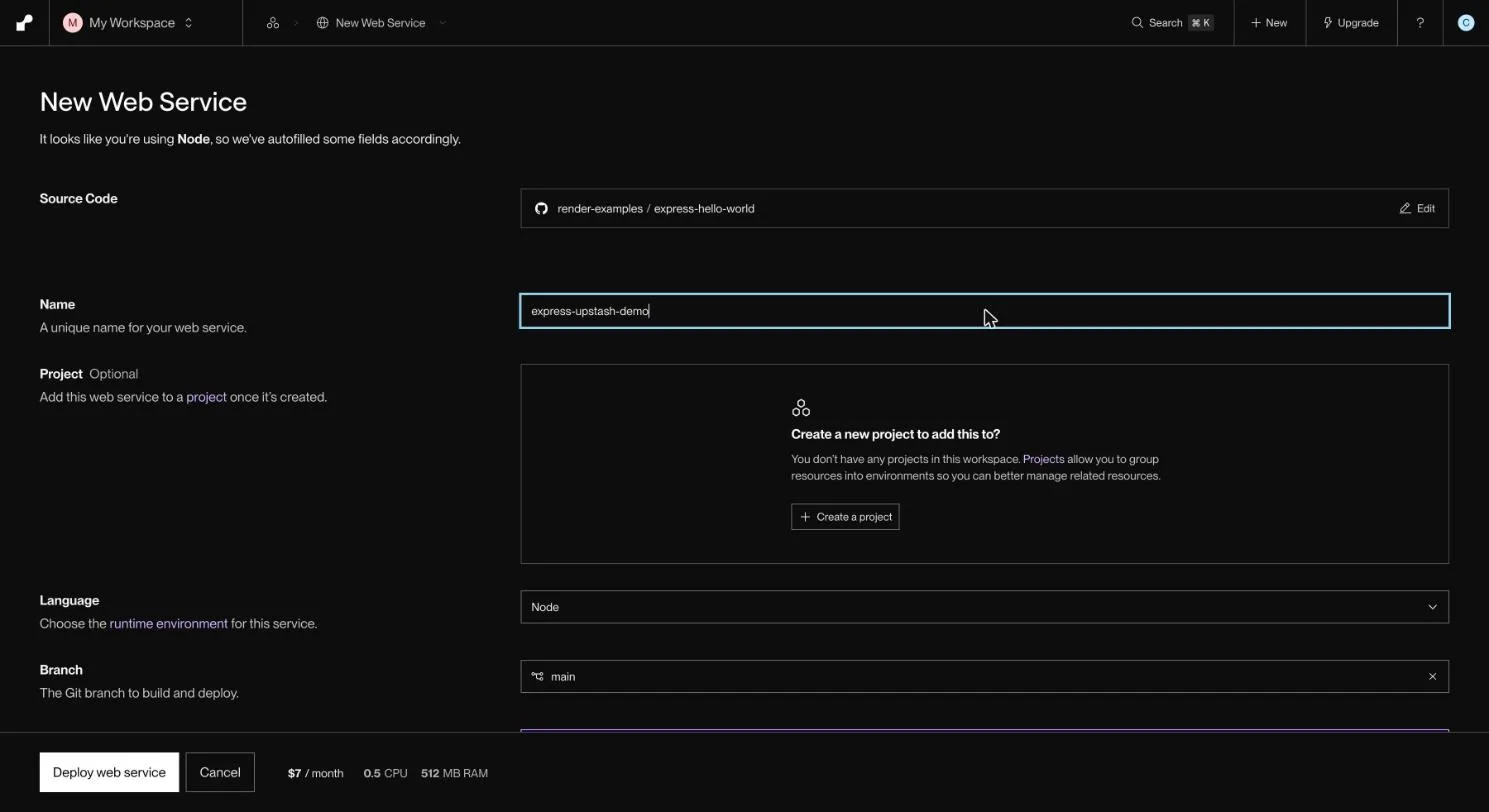
In the Render Dashboard, click New and select Web Service. Connect your Git provider and select the repository, or paste a URL under Public Git Repository.
Configure the build
Set Language, Build Command and Start Command for your app.
Render pre-fills them from what it detects in the repository (for a Node
app it suggests yarn and yarn start), so check all three. For the
Express quickstart, use npm install and npm start. Choose a Region
close to your Upstash database and an Instance Type.
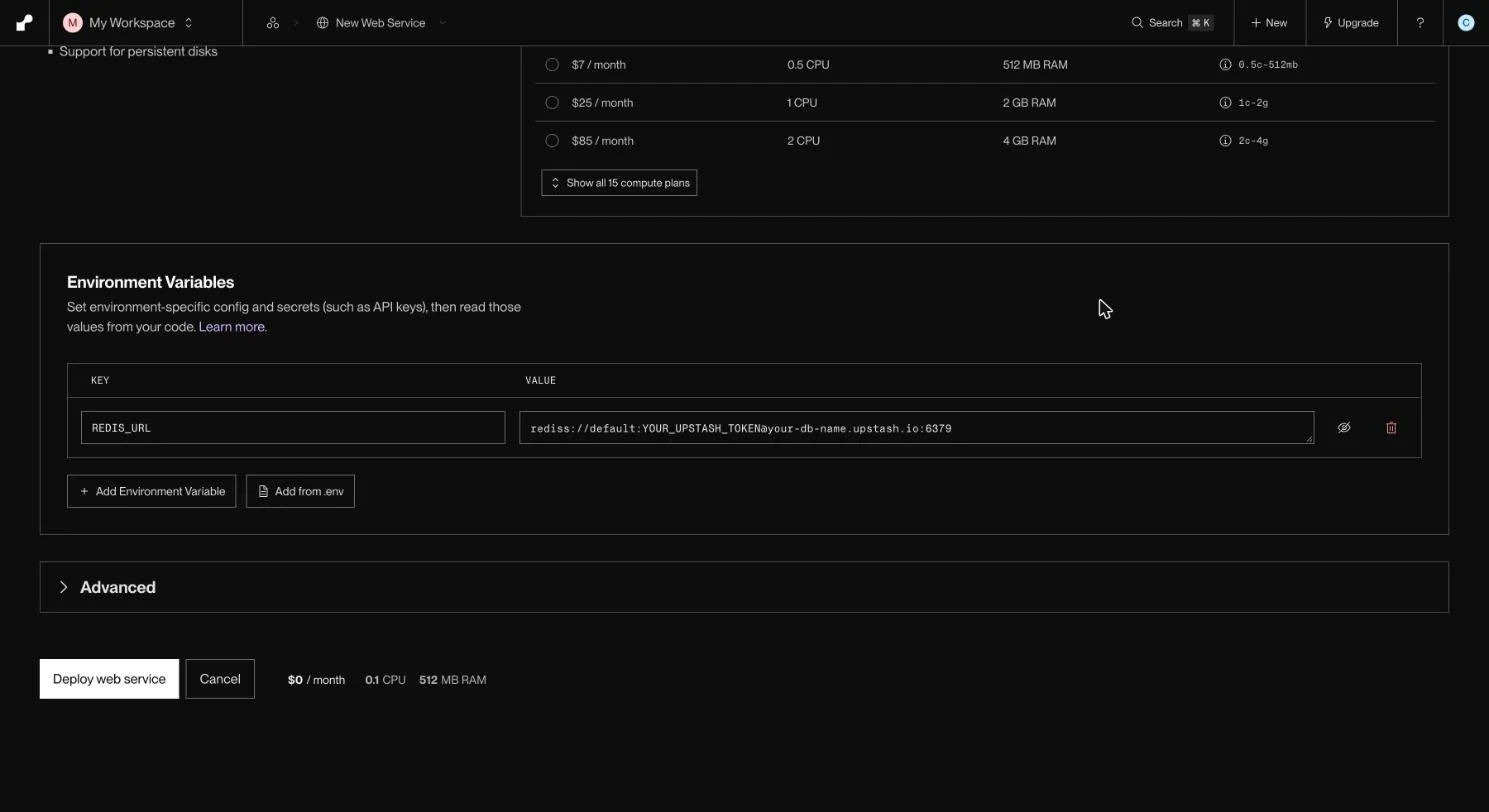
Add REDIS_URL
Under Environment Variables, add a variable with the key REDIS_URL and
your Upstash connection string as the value.
Deploy
Click Deploy web service. Render builds and starts the app, and shows
its onrender.com URL when the deploy finishes.
To change the variable later, open the service, click Environment in the
left pane, and edit REDIS_URL. Saving starts a new deploy unless you choose
Save only.
Test#
After the deploy finishes, check the service’s Logs. A wrong REDIS_URL
shows up there as a connection or authentication error when your app first
talks to Redis. To check the connection explicitly, send a PING from your app
after it connects; Upstash replies PONG (redis-py’s ping() returns True).
Upstash or Render Key Value#
Render also offers Render Key Value, a Redis-compatible store (Valkey) that runs on Render’s private network. Services in the same region and workspace can reach it over an internal URL, and paid instances support disk-backed persistence.
Upstash is a good fit when you want:
- A database you can also reach from your laptop, CI, other hosts and edge functions. Render Key Value is not reachable from outside Render until you add allowed IP ranges.
- Per-request pricing with a free tier, instead of an instance size. See Pricing.
- The HTTP API and global read regions for serverless and multi-region apps.
The app code is the same in both cases. Only the value of REDIS_URL changes.