

A box is a Linux machine in the cloud with a filesystem, a shell, git and a runtime. This guide turns one into a development environment: your app runs in the box, you open it in your browser, and your coding agent does the work.
Next.js is the example below. Anything that listens on a port works the same way.
1. Set Up Your Agent#
Install the Upstash plugin in Claude Code or Codex. It adds the MCP server and the skills in one step:
The first tool call opens a consent page in your browser. Pick your account or team and keep the connection read-write.
Other clients
Add the remote MCP server to your client, then install the skills.
Edit ~/.cursor/mcp.json:
Add to ~/.codex/config.toml:
See Install by agent for every other client.
2. Create the Box#
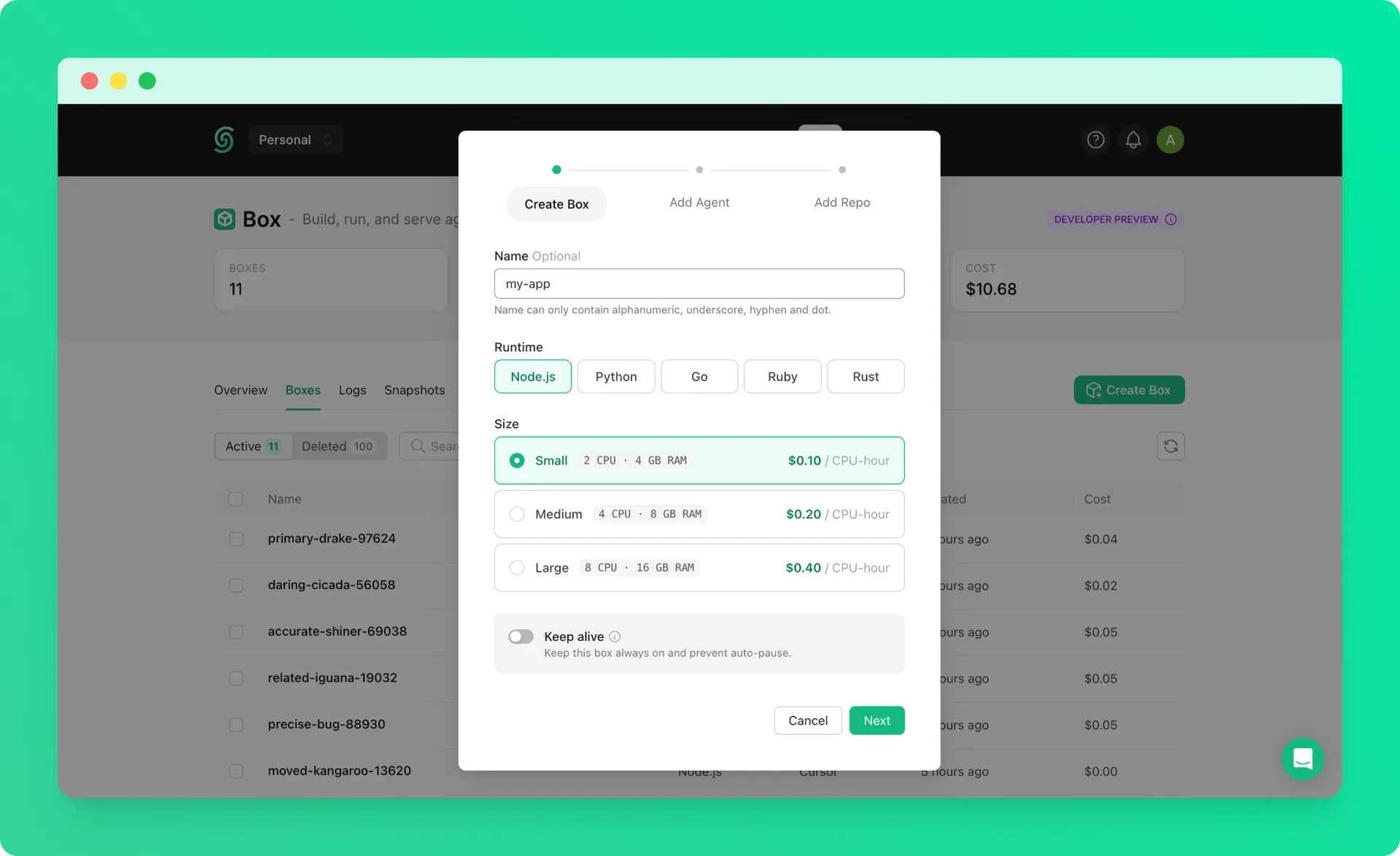
Ask your agent:
Create a node box called
web-devand clonegithub.com/my-org/my-appinto it.
The agent creates the box and clones the repository. You can also create a box in the Upstash Console and let the agent pick it up by name.
3. Start Your Dev Server#
Install the dependencies in the box and start the dev server on port 3000.
The agent runs the install, starts the server in the background, and checks that the port answers. If something fails, ask it to read the logs.
Starting without a repository? Ask the agent to create the app in the box, for example with npx create-next-app@latest my-app.
4. Open It in Your Browser#
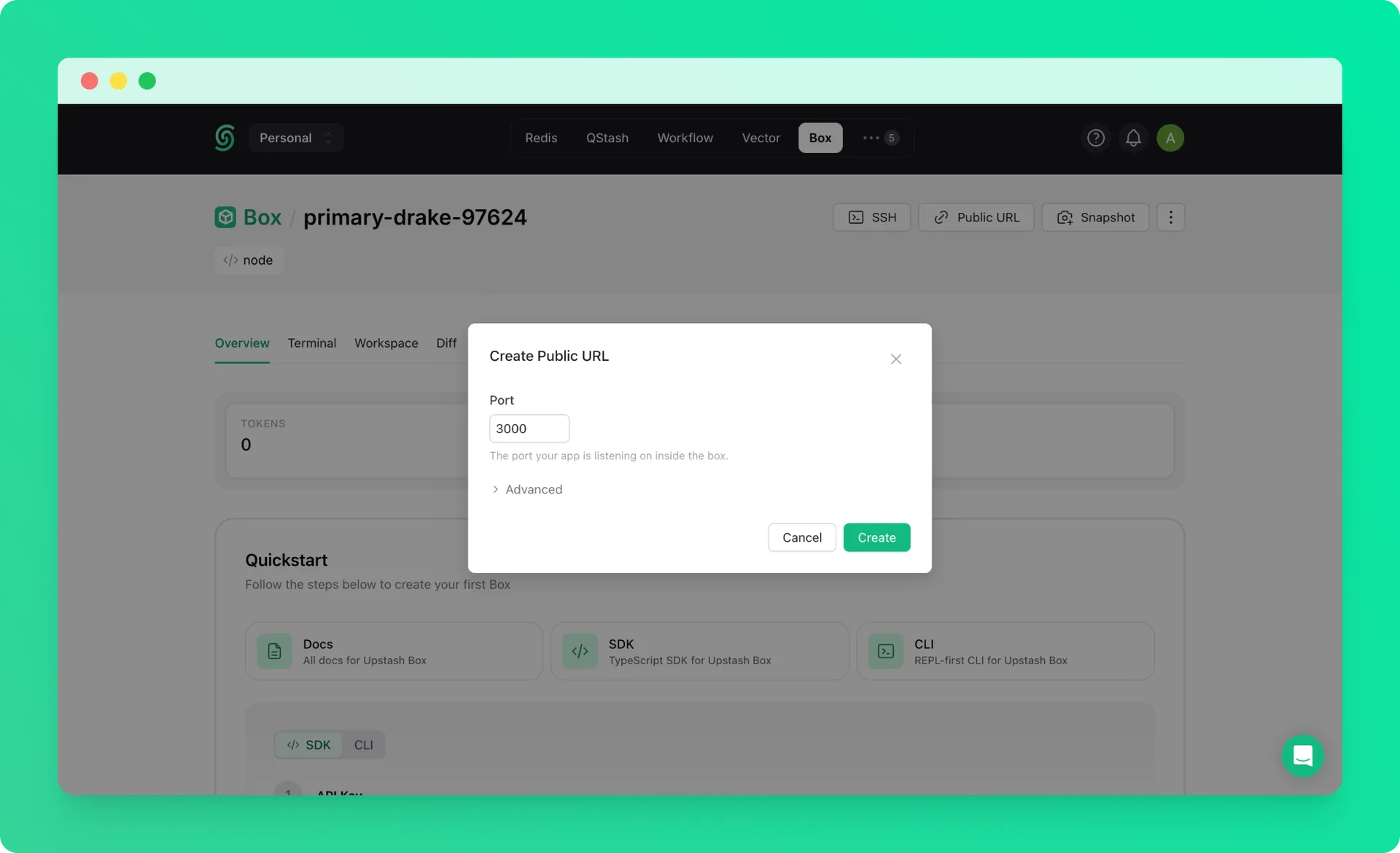
Give me a public URL for port 3000.
The agent returns a URL like:
It works from anywhere, so you can open it on your phone or send it to a teammate. Ask for basic auth or a bearer token if it should not be public. See Public URLs.
5. Come Back Tomorrow#
A box pauses when you stop working and keeps your files. Ask the agent to start the dev server again, and the same URL works.
To skip the setup next time, ask the agent to snapshot the box and create new boxes from the snapshot. See Snapshots.
Example Prompts#
- “Spin up a box with my repo cloned, install dependencies and start the dev server on 3000”
- “Give me a public URL for port 3000 with basic auth”
- “The dev server stopped responding, check the box logs and restart it”
- “Snapshot this box, then create two more from the snapshot”
- “Open the preview URL in the box’s browser, take a screenshot, and tell me if the layout broke”