How to Safely Run AI-Generated Code in a Code Sandbox: 7 Isolation Controls
 Ali Tarık Şahin
LLMs are no longer just text generators. Today we have coding assistants, data analysts and chat apps that can write code on behalf of the user, which is executed immediately. This turns LLMs into a very powerful tool, but also introduces a new set of risks.
Since there is no human in the loop reviewing the code that the LLM generates, if the LLM processes text that is contaminated with instructions from an attacker, the LLM may follow those instructions and write code that reads your secrets, posts them to some server, or even opens a shell.
A code sandbox runs that code on a separate, throwaway machine instead. Seven controls decide how safe it is, and you set most of them yourself. We ran every snippet below on a real Upstash Box account in October 2026, with @upstash/box 0.7.10 and the AI SDK (ai) 7.0.148. When we say "in our test", that is what we saw, not a promise from the docs.
Why does AI-generated code need a sandbox?
Model-written code is untrusted input, because the model writes it from text you don't control. OWASP calls this risk Excessive Agency: an LLM tool does harmful things because someone manipulated its output.
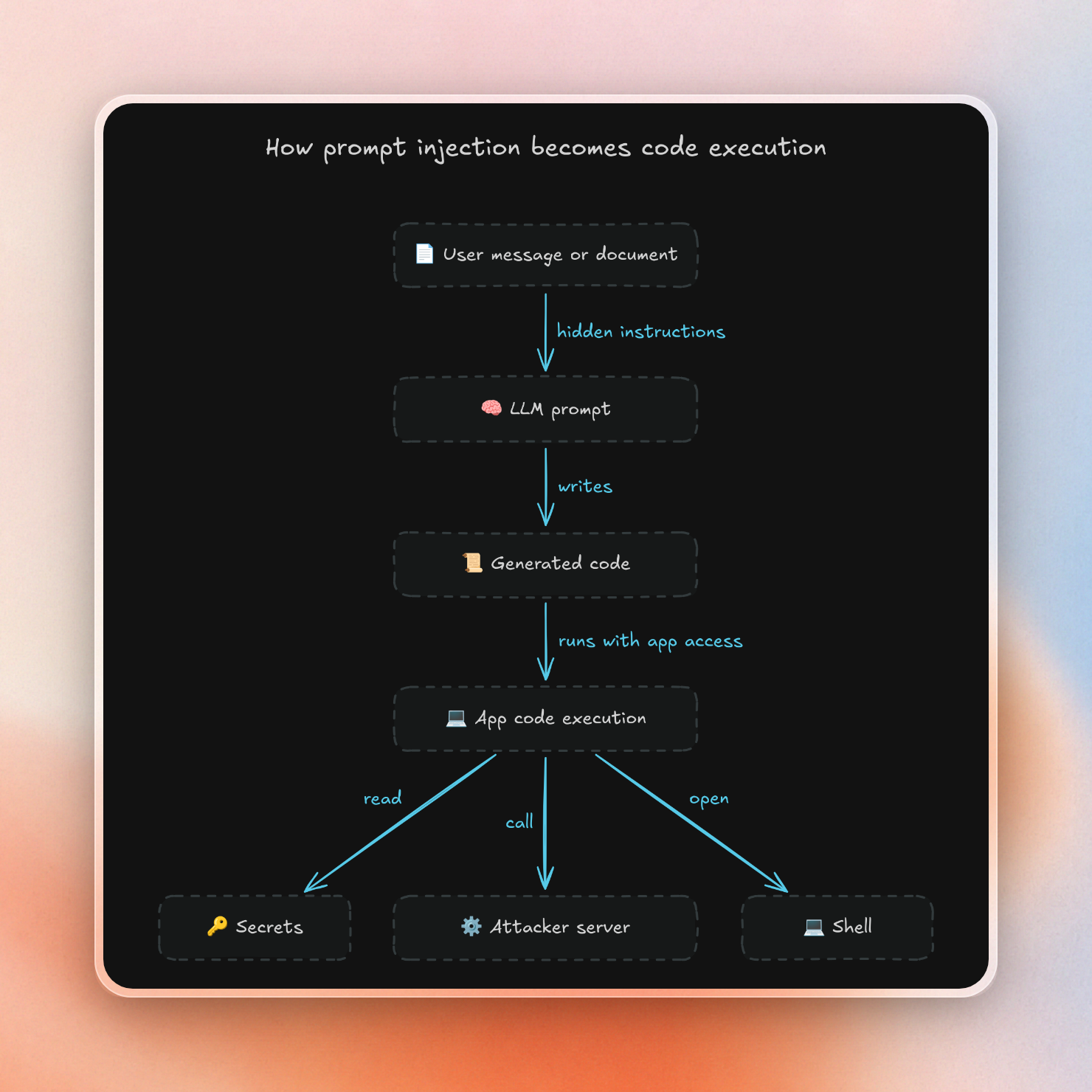
NVIDIA's AI Red Team showed remote code execution via prompt injection (CVE-2024-12366) in PandasAI, a library that translates questions about data frames to Python. This library included a filter to prevent dangerous calls. However, the AI Red Team found a way to bypass the filter and execute code on the operating system via a test helper in NumPy. The string “os” was encoded as the bytes “nr” with each byte XOR’d by 1. A filter that checks for the string “os” would have missed it.
Filters can still be useful as an additional layer of security. However, there are many ways for a model to write the same attack, and the filter needs to be aware of all of them. A sandbox, on the other hand, limits access after the code is executed. It doesn’t matter how the code is written.
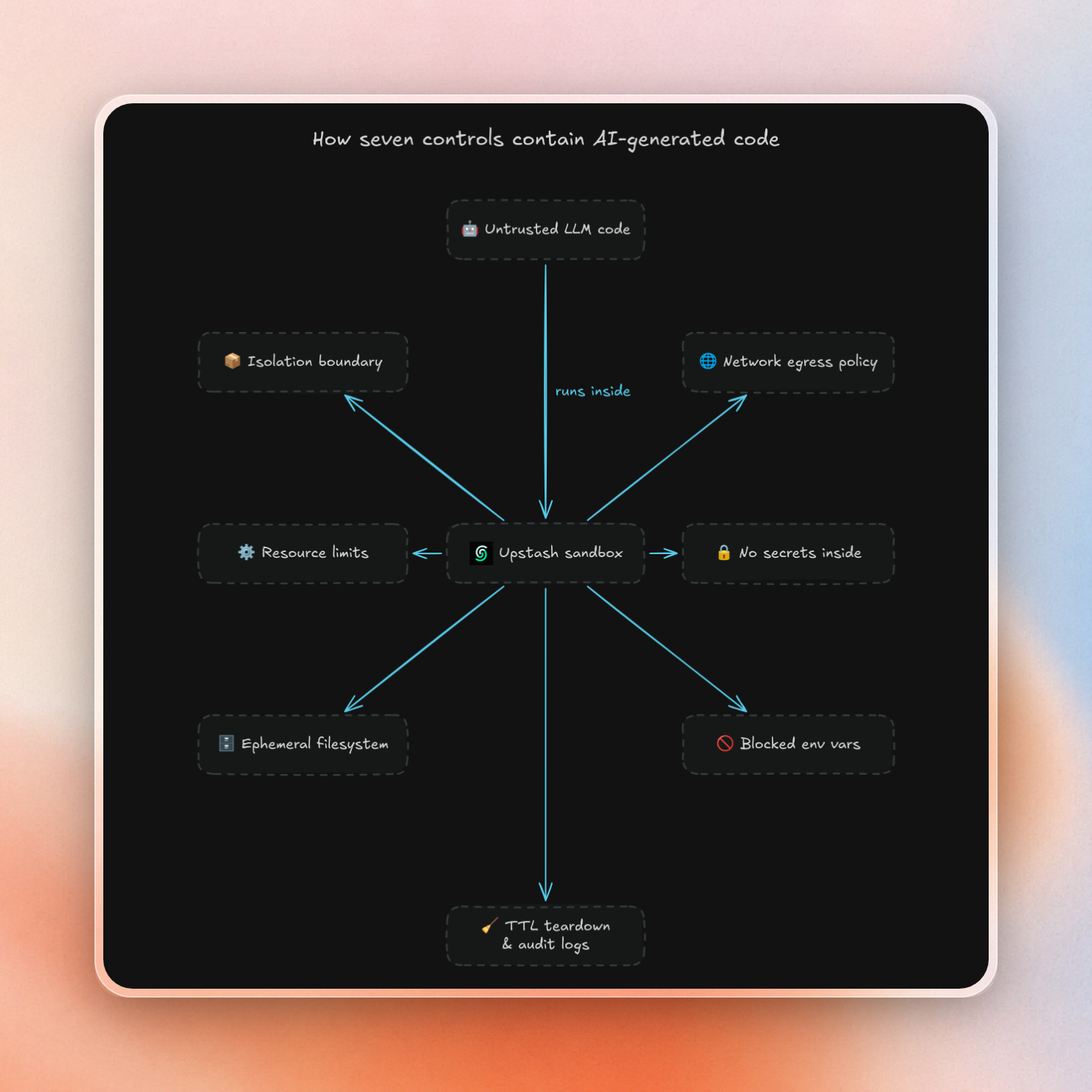
1. Pick the isolation boundary
Your first choice is what wall you want to put up between untrusted code and the host system. There are 3 common walls, each of which differs only in the extent to which the code is able to reach the host’s kernel.
| Boundary | Kernel | Typical escape path | Example sandbox |
|---|---|---|---|
| Container (Docker) | Shares the host kernel, separated by namespaces and cgroups | A bug in the kernel or the container runtime | Upstash Box |
| gVisor | A user-space kernel answers the code's system calls; none pass straight to the host | A bug in gVisor, then a bug in the host | Modal |
| microVM (Firecracker) | Each guest gets its own kernel | A bug in the VM monitor or the hardware | Vercel Sandbox |
These are general paths. Misconfiguration or host files / devices shared into the sandbox can open up more access, regardless of the barrier.
Container escapes happen. The Leaky Vessels bug in runc 1.1.11 and earlier allowed a newly created container process to start with its working directory in the host filesystem – a full escape.
Upstash Box uses a container. Each box runs as its own Docker container with its own filesystem, process tree and network stack, and boxes can't see or reach each other. You can see the shared kernel from inside. On a small box (2 vCPU, 4 GB), nproc printed 64 and free -m printed 253,148 MB, because those tools read the host machine's totals:
$ uname -r
7.0.0-1011-aws
$ nproc
64
$ free -m
               total        used        free      shared  buff/cache   available
Mem:          253148       83312       36318       11168      146765      169835
The box size is still enforced. The box's cgroup files show the real limits for a small box: 2 CPUs and 4 GB of memory, with a 5 GB disk:
$ cat /sys/fs/cgroup/cpu.max /sys/fs/cgroup/memory.max
200000 100000
4294967296
$ df -h /workspace
/dev/nvme0n1    5.0G  112K  5.0G   1% /workspace
If you're running potentially hostile code from many different people, a microVM is the better wall. And the main concern would be a kernel exploit. But if your main concern is that the model can be tricked into either reading some sensitive data or making some network calls to the internet, then the choice of wall matters less, and you're better off with the other six controls. gVisor's own security guide notes that a sandbox is not a substitute for a secure architecture. gVisor relies on host cgroups for resource limits, and it says network controls should be applied at the container level. Firecracker, for example, does no network filtering.
2. Turn off the network, or allowlist it
Network rules define what outbound connections can be made by the code. Restricting these outbound connections can help prevent code from sending stolen data to another server, downloading a second payload, or attacking other servers.
New boxes have full outbound access by default. Restricting it is opt-in. Box has three network modes:
allow-allis the default. The code can reach any public host.deny-allblocks every outbound connection.customallows only the listed domains and IP ranges. Denied ranges win over allowed ones.
Private IP ranges stay blocked in every mode, even if you try to allow them. We checked two of them under the default allow-all policy:
import { EphemeralBox } from '@upstash/box'

const box = await EphemeralBox.create({
  runtime: 'node',
  size: 'small',
  ttl: 120,
})

try {
  console.log('policy:', box.networkPolicy.mode)
  const run = await box.exec.code({
    lang: 'js',
    timeout: 10_000,
    code: `
for (const url of ['http://169.254.169.254/latest/meta-data/', 'http://10.0.0.1']) {
  try {
    const response = await fetch(url, { signal: AbortSignal.timeout(3000) })
    console.log(url, 'status:', response.status)
  } catch (error) {
    console.log(url, error.name + ':', error.message)
  }
}
`,
  })
  console.log(run.status, run.result.trim())
} finally {
  await box.delete()
}
Both the cloud metadata address and the internal address failed:
policy: allow-all
completed http://169.254.169.254/latest/meta-data/ TypeError: fetch failed
http://10.0.0.1 TypeError: fetch failed
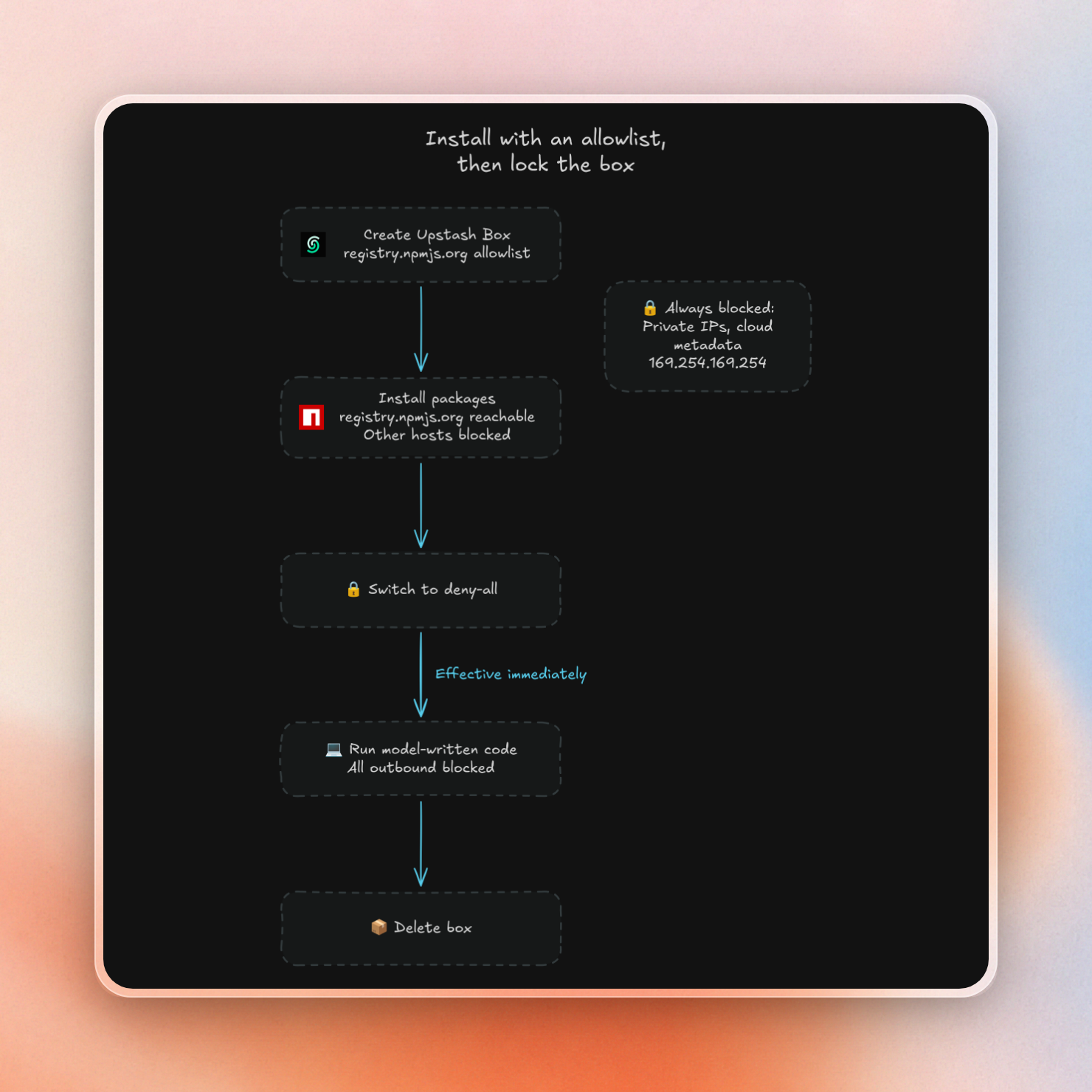
A pattern that works well is to install packages with a short allowlist, then switch the box to deny-all before any model-written code runs. You can change the policy on a running box, and the change takes effect right away:
import { Box } from '@upstash/box'

const box = await Box.create({
  runtime: 'node',
  size: 'small',
  networkPolicy: { mode: 'custom', allowedDomains: ['registry.npmjs.org'] },
})

async function fetchFromBox(url: string) {
  const run = await box.exec.code({
    lang: 'js',
    timeout: 10_000,
    code: `
try {
  const response = await fetch(${JSON.stringify(url)}, { signal: AbortSignal.timeout(3000) })
  console.log('status:', response.status)
} catch (error) {
  console.log('error:', error.message)
}
`,
  })
  console.log(url, run.status, run.result.trim())
}

try {
  await fetchFromBox('https://registry.npmjs.org')
  await fetchFromBox('https://example.com')
  await box.updateNetworkPolicy({ mode: 'deny-all' })
  console.log('policy:', box.networkPolicy.mode)
  await fetchFromBox('https://registry.npmjs.org')
} finally {
  await box.delete()
}
The allowed registry answered, the other host failed, and after the switch the registry failed too:
https://registry.npmjs.org completed status: 200
https://example.com completed error: fetch failed
policy: deny-all
https://registry.npmjs.org completed error: fetch failed
Make the allowlist as short as possible. Each allowed domain is potentially a destination for stolen data. If your code needs to make use of one API, then only allow access to the host of that API.
Even if the network is locked down, the code can print secret data and your application will send the output back to the model or user. Or, code can write data to files, which can also leave the sandbox. So, don’t trust output or files from the sandbox, and only input data into the sandbox that the current user is authorized to see.
3. Limit CPU, memory, disk and time
Code doesn't even need to be malicious to cause harm. A simple off-by-one error in a while loop, a recursive function that never returns, or a request to "try every combination" can easily hog the CPU for hours.
Box gives each box a fixed size, set when you create it. The default is small:
| Size | vCPU | Memory | Storage |
|---|---|---|---|
| small | 2 | 4 GB | 5 GB |
| medium | 4 | 8 GB | 10 GB |
| large | 8 | 16 GB | 20 GB |
A box can't use more than its size, so pick the smallest one that works for your use case. After all, the bigger the box, the bigger the budget of code you didn’t write.
The other limits are around time. There are two settings for that:
timeoutonexec.codeis meant to limit a single run, in milliseconds. In our tests it did not stop the code yet (see below).timeoutonBox.createis the SDK's request deadline for every request made through that box, not only runs. It gives control back to your app if a run hangs. It doesn't stop the code in the box.
Here is an infinite loop with both set:
import { Box } from '@upstash/box'

const box = await Box.create({
  runtime: 'node',
  size: 'small',
  timeout: 15_000,
})

try {
  const startedAt = Date.now()
  try {
    const run = await box.exec.code({ lang: 'js', code: 'while(true){}', timeout: 3000 })
    console.log(JSON.stringify({
      elapsedMs: Date.now() - startedAt,
      status: run.status,
      exitCode: run.exitCode,
      result: run.result,
      stderr: run.stderr,
    }, null, 2))
  } catch (error) {
    console.log('elapsedMs:', Date.now() - startedAt)
    console.log('error:', error instanceof Error ? error.message : String(error))
  }
} finally {
  await box.delete()
}
In our test, the 3-second run limit did not stop the loop. The call came back only when the 15-second request deadline hit:
elapsedMs: 15001
error: Request timeout
Then we ran the same loop again and listed the processes in the box before deleting it. The loop was still running, first 14 seconds and then 25 seconds after it started:
PID     ELAPSED COMMAND
     59       00:14 node /tmp/code-0981bc13-0577-40c6-bdf2-00d370dbfdf1.js
     59       00:25 node /tmp/code-0981bc13-0577-40c6-bdf2-00d370dbfdf1.js
So the request deadline only frees your app. Deleting the box is what stops the code. Set both timeouts, and always delete the box when a call fails. A running box costs money. Box bills per active CPU hour ($0.10 for a small box on pay as you go). The free plan includes 5 CPU hours a month, which can easily be used up by a loop that gets stuck.
4. Throw the filesystem away after each run
If one run can leave behind a file for the next run to read, then that next run can read it. Whether that’s a poisoned script, stolen token, or data from another user’s session, doesn’t matter. The fix can be as simple as spinning up a new box for each run and deleting the box when the run completes.
Box has a type for this. An EphemeralBox supports only running code and files, and deletes itself when its TTL (time to live, in seconds) runs out. The TTL can be up to three days, and that is also the default, so set it low on purpose. This script writes a file in one box, deletes it, then looks for the file in a fresh box:
import { EphemeralBox } from '@upstash/box'

const box = await EphemeralBox.create({
  runtime: 'node',
  size: 'small',
  ttl: 120,
})

try {
  console.log('expiresAt:', box.expiresAt)
  await box.files.write({ path: 'message.txt', content: 'Hello from an ephemeral box' })
  console.log('read:', await box.files.read('message.txt'))
} finally {
  await box.delete()
}

const secondBox = await EphemeralBox.create({
  runtime: 'node',
  size: 'small',
  ttl: 120,
})

try {
  const files = await secondBox.files.list()
  let fileExists = false
  for (const file of files) {
    if (file.name === 'message.txt') fileExists = true
  }
  console.log('message.txt exists in second box:', fileExists)
} finally {
  await secondBox.delete()
}
The second box starts empty:
expiresAt: 1792676249
read: Hello from an ephemeral box
message.txt exists in second box: false
The finally block deletes the box after each run. The 120-second TTL is the backup: Box deletes the box after two minutes even if the finally never runs, for example when your server crashes mid-call.
In some cases, an agent might want to keep the files for the entire conversation. In this case, you can use a single box per conversation. In order to open a box, you need your API key. Therefore, the risk is in your backend. If your backend takes the box name from the request and opens it with its own key, then one user can access another user’s box. To prevent this, you should keep a server-side map from user and conversation to box, and on each request, make sure that the box belongs to the current user. A hashed name can help, but it doesn’t replace this check.
5. Keep secrets out of the sandbox
Sometimes you do need to use a real API, and that API requires an API key. You’d typically pass the API key to your code in an environment variable, but then any code in the box (including code that was generated by a prompt injection) could read every environment variable.
Box provides another way to use API keys: attach headers. This adds the API key as a header to all outbound HTTPS requests to a host you specify, via a proxy on the host. The key is never in the box's environment or files.
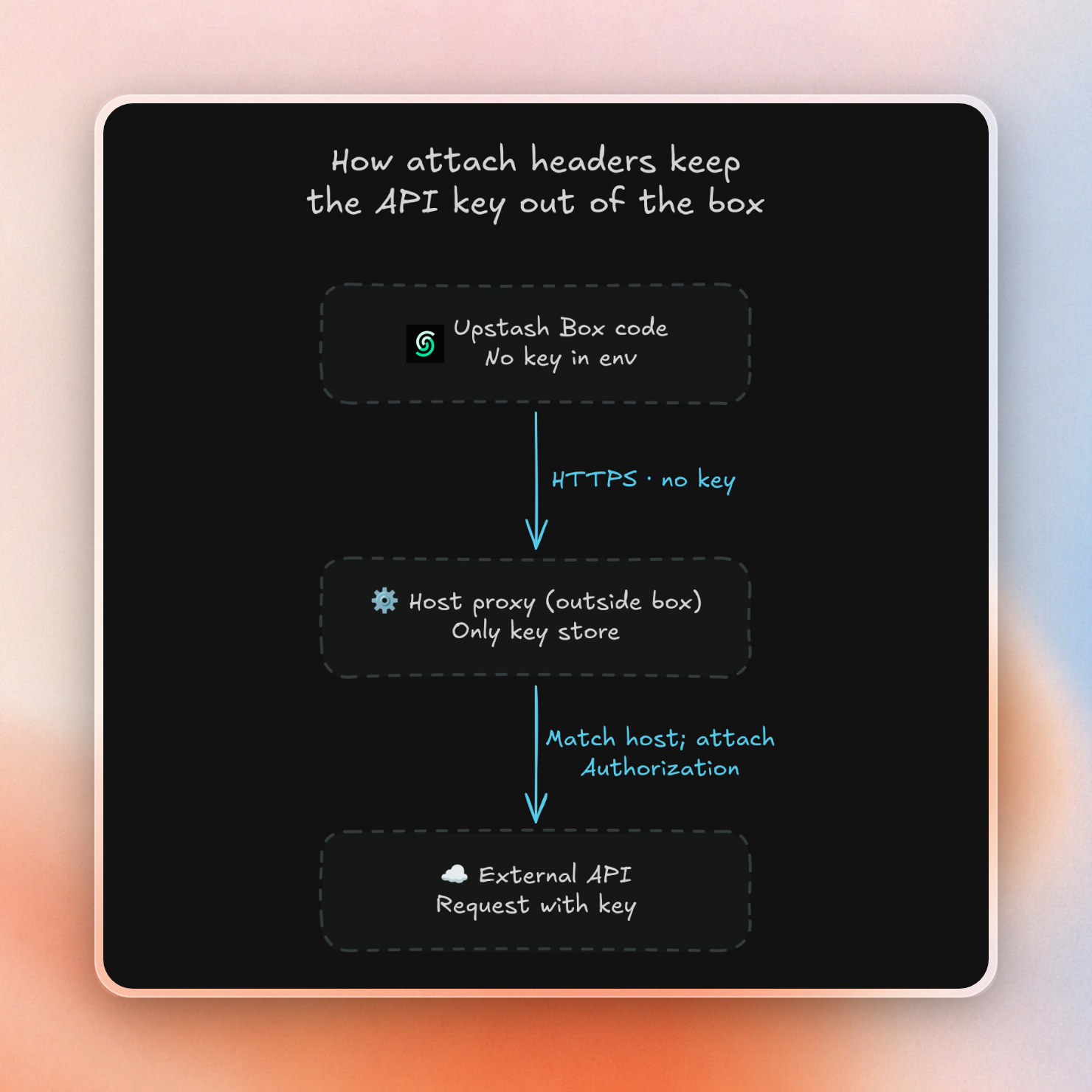
This script puts the same fake token in a box both ways:
import { Box } from '@upstash/box'

const demoToken = process.env.DEMO_TOKEN
if (!demoToken?.startsWith('fake-demo-')) throw new Error('Set DEMO_TOKEN to a fake-demo- token')

const envBox = await Box.create({
  runtime: 'node',
  size: 'small',
  env: { DEMO_TOKEN: demoToken },
})

try {
  const run = await envBox.exec.code({ lang: 'js', code: 'console.log("DEMO_TOKEN:", process.env.DEMO_TOKEN)' })
  console.log(run.result.trim())
} finally {
  await envBox.delete()
}

const headerBox = await Box.create({
  runtime: 'node',
  size: 'small',
  attachHeaders: { 'httpbin.org': { Authorization: `Bearer ${demoToken}` } },
})

try {
  const run = await headerBox.exec.code({
    lang: 'js',
    timeout: 10_000,
    code: `
let tokenInEnv = false
for (const value of Object.values(process.env)) {
  if (value?.includes('fake-demo')) tokenInEnv = true
}
console.log('fake token in env:', tokenInEnv)
const response = await fetch('https://httpbin.org/headers', { signal: AbortSignal.timeout(8000) })
const body = await response.json()
console.log('echoed Authorization:', body.headers.Authorization)
`,
  })
  console.log(run.status, run.result.trim())
} finally {
  await headerBox.delete()
}
In the first box, the code prints the token from the environment. In the second, the token is not in the environment, and httpbin.org still got it on the request. But httpbin.org sends the headers back, so the code could read the token from the response:
DEMO_TOKEN: fake-demo-123
completed fake token in env: false
echoed Authorization: Bearer fake-demo-123
Attach headers are subject to some restrictions.
- They are configured when the box is created; they cannot be changed on a running box.
- The proxy only attaches headers to HTTPS on port 443.
- The code can still use the key to call the API.
- If the API sends the header back in a response, the code can read the key there.
Because of the last two points, this control is paired with control 2; restrict to the API’s host, and assign the least possible permissions to the key. Giving LLM tools the fewest permissions they need is a key defense against excessive agency, for the same reason.
6. Check the privileges inside the sandbox
Inside the box, the question is what the code can do to the box itself. We ran a few commands in a fresh box to check:
$ id
uid=1002(boxuser) gid=1002(boxuser) groups=1002(boxuser)
$ cat /proc/self/status | grep -E 'Seccomp|CapEff|NoNewPrivs'
CapEff:	0000000000000000
NoNewPrivs:	0
Seccomp:	2
Seccomp_filters:	1
$ sudo -n true && echo sudo-ok
sudo-ok
Let's look at each line:
- This code is running as the
boxuseruser. It isn't running as root. - This process has no Linux capabilities (
CapEffis zeroed out), which means it can't perform various admin actions, like mounting disks directly. - The process is using a seccomp filter (a Linux feature that blocks selected system calls). Mode 2 means a filter has been loaded.
sudois configured to allow password-less use. This code can usesudoto gain root access inside the container.
Let's unpack that last point. Box's documentation for installing packages uses sudo apt-get install. So this code can become root within its container, and the non-root user gives little protection. The container wall, the network rules and the secret controls are what protect you.
Box also blocks a short list of environment variables that are known ways to hijack a process. It doesn't return an error. In our test, Box.create succeeded with them, and the box simply didn't get them, while a normal variable came through:
create succeeded: true
{"FOO":"bar"}
These are the blocked names:
PATHandHOME– which can cause programs to run fake binaries or use fake folders.LD_PRELOADandLD_LIBRARY_PATH– which can be used to load a shared library into every program.NODE_OPTIONS– which can be used to inject flags into Node.js.
This only matters if you generate your env vars from user input or from models, because these five names change how programs in the box start. Since Box drops them without an error, check your own env list if your app depends on one of them. This is only about env vars that you set on creation, code that is already running in the box can set whatever variables it wants for programs it starts.
7. Log every run and tear the box down
When something does go wrong, you want to know what code ran when and what was printed. This is the difference between sandboxing, which stops damage, and logging, which tells you someone tried to do something. OWASP lists logging and monitoring of LLM tool activity as a way to limit the damage from excessive agency.
A regular Box keeps a history of runs. listRuns returns every run on the box with its status, and each run has a logs call for timestamped entries:
import { Box } from '@upstash/box'

const box = await Box.create({
  runtime: 'node',
  size: 'small',
})

try {
  const run = await box.exec.command('echo hello')
  console.log('result:', run.result.trim())
  console.log('logs:', JSON.stringify((await run.logs()).slice(0, 3), null, 2))
  const runs = await box.listRuns()
  const statuses = []
  for (const listedRun of runs) statuses.push(listedRun.status)
  console.log('runs:', JSON.stringify({ count: runs.length, statuses }))
} finally {
  await box.delete()
}
result: hello
logs: []
runs: {"count":1,"statuses":["completed"]}But the run history is deleted with the box itself, and EphemeralBoxes don’t even have a run history. So, in your application, make sure to also store the code received from the model, the box ID, the status and the first few kilobytes of the output – and do so before the box is deleted.
Deleting the box, as said, is the last step on every possible path. Wrap every run in try/finally, so box.delete() runs when a run fails or times out. If your server crashes, finally may never run, and the TTL deletes the box instead. Once the box is deleted, the box and its current state are also gone – exactly what we want with untrusted code.
A minimal code-interpreter tool
Here is a small code-interpreter tool for the Vercel AI SDK that uses several controls together. Each call gets a fresh small box with no network, a 15-second request deadline and a two-minute TTL, and the box is deleted when the call ends:
import { EphemeralBox } from '@upstash/box'
import { tool } from 'ai'
import { z } from 'zod'

async function executeCode({ code }: { code: string }) {
  const box = await EphemeralBox.create({
    runtime: 'node',
    size: 'small',
    ttl: 120,
    timeout: 15_000,
    networkPolicy: { mode: 'deny-all' },
  })

  try {
    const run = await box.exec.code({ lang: 'js', code, timeout: 10_000 })
    return run.result.slice(0, 8000)
  } finally {
    await box.delete()
  }
}

export const runCode = tool({
  description: 'Run JavaScript in a disposable sandbox with no network access. Print results with console.log.',
  inputSchema: z.object({ code: z.string() }),
  execute: executeCode,
})
The output is cut to 8,000 characters before it goes to the model. This only protects the model's context. The box still runs the whole script, and the SDK still gets all of its output. The tool also doesn't keep a lasting log yet. And because the run timeout didn't stop code in our tests, a runaway script ends at the 15-second request deadline: the call throws, the finally deletes the box, and the model gets an error instead of output. We gave the tool to Claude and asked it to compute the 30th Fibonacci number, then fetch a web page:
import { anthropic } from '@ai-sdk/anthropic'
import { generateText, stepCountIs } from 'ai'
import { runCode } from './tool.js'

const result = await generateText({
  model: anthropic('claude-sonnet-5-5'),
  tools: { runCode },
  stopWhen: stepCountIs(3),
  prompt: 'Use the tool to compute the 30th Fibonacci number, then try to fetch https://example.com and report what happens.',
})

for (const step of result.steps) {
  console.log('tool calls:', JSON.stringify(step.toolCalls, null, 2))
  console.log('tool results:', JSON.stringify(step.toolResults, null, 2))
}
console.log('final text:', result.text)
The model wrote two scripts. The math ran, and the fetch failed inside the box. These are the tool outputs and the model's answer, trimmed from the printed JSON:
tool result: F30 = 832040
tool result: ERROR: fetch failed ECONNRESET
final text: - **30th Fibonacci number:** 832040. This uses the convention F(0)=0, F(1)=1.
- **Fetch of https://example.com:** It failed with `fetch failed` and the error code `ECONNRESET`. The sandbox has no network access, so the connection was reset and no page content came back.
To add more, log the code and output to your own store before the finally runs (control 7). If the tool needs one API, swap deny-all for a custom policy with that single host and pass the key through attach headers (controls 2 and 5). For a recap, these are the seven controls and the Box setting for each:
| Control | Box setting |
|---|---|
| 1. Isolation boundary | One Docker container per box |
| 2. Network egress | networkPolicy deny-all or custom allowlist |
| 3. Resource and time limits | size, run timeout, request timeout |
| 4. Throwaway filesystem | EphemeralBox with a short ttl |
| 5. Secrets out of the box | attachHeaders instead of env vars |
| 6. Privileges inside the box | Non-root user and seccomp, but sudo works; blocked env vars at create |
| 7. Logs and teardown | Your own run log, try/finally delete |

