> ## Documentation Index
> Fetch the complete documentation index at: https://upstash.com/docs/llms.txt
> Use this file to discover all available pages before exploring further.
# Datadog - Upstash QStash Integration
This guide walks you through connecting your Datadog account with Upstash QStash for monitoring and analytics of your message delivery, retries, DLQ, and schedules.
**Integration Scope**
Upstash Datadog Integration covers Prod Pack.
## **Step 1: Log in to Your Datadog Account**
1. Go to [Datadog](https://www.datadoghq.com/) and sign in.
## **Step 2: Install Upstash Application**
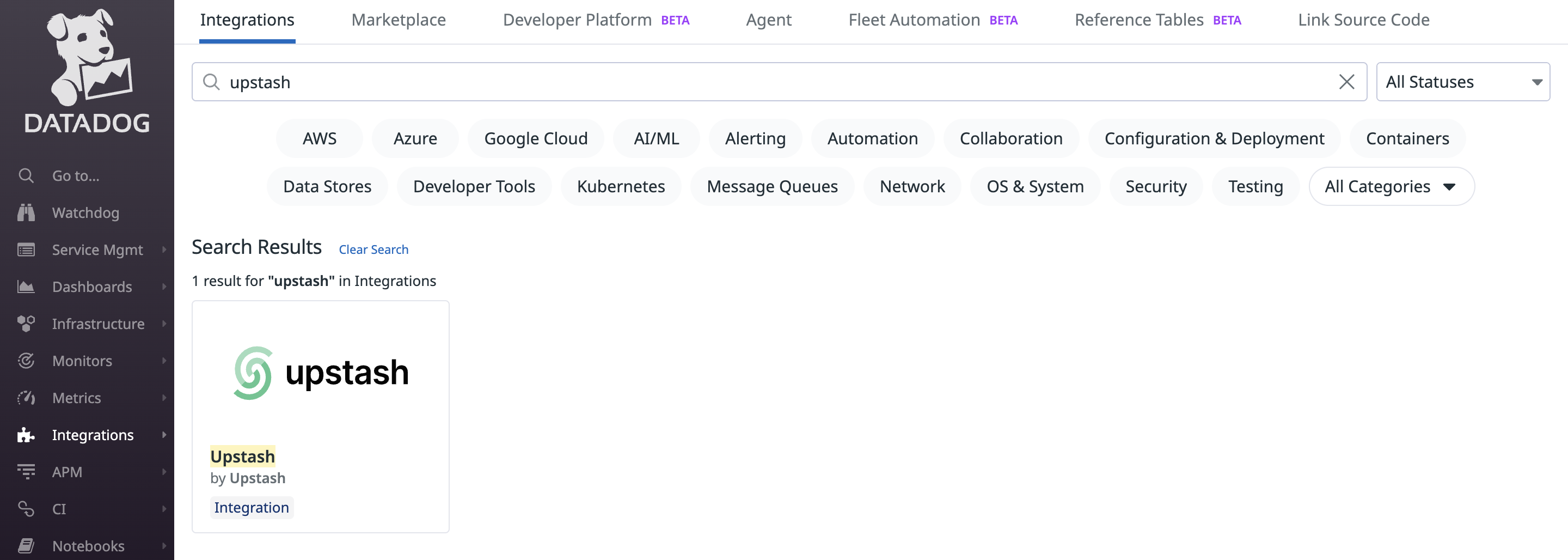
1. In Datadog, open the Integrations page.
2. Search for "Upstash" and open the integration.
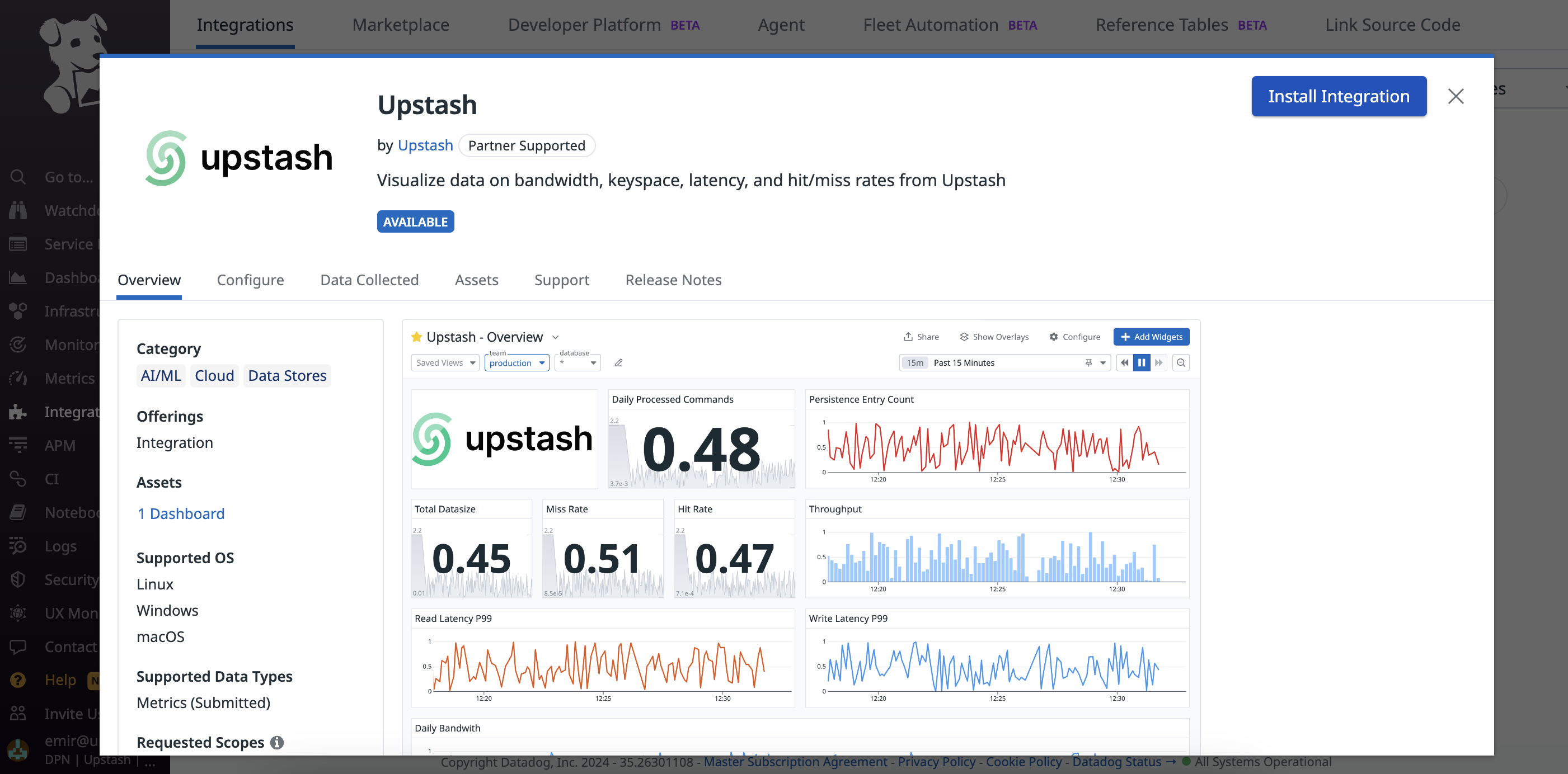
 Click "Install" to add Upstash to your Datadog account.
 ## **Step 3: Connect Accounts**
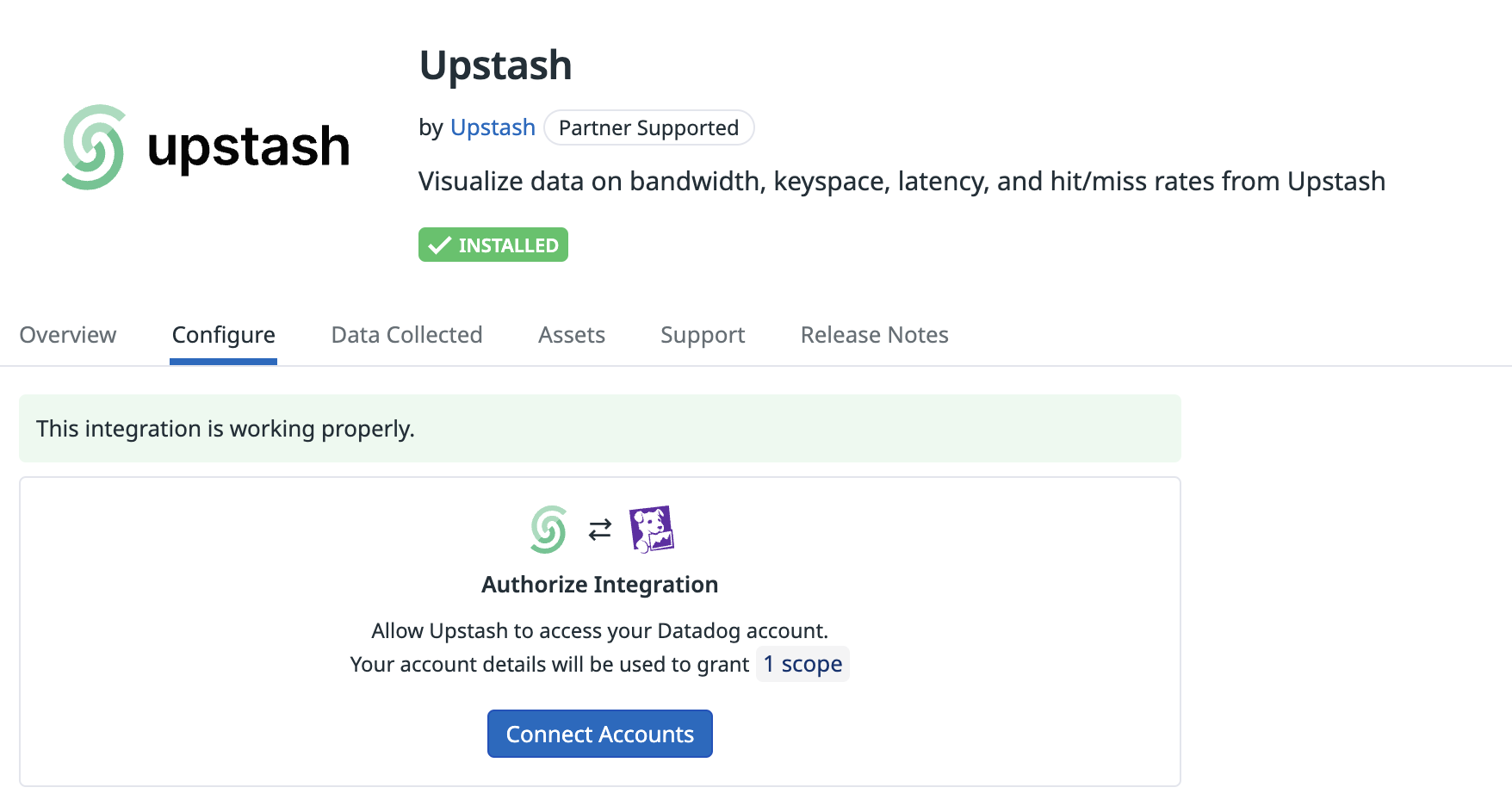
After installing Upstash, click "Connect Accounts". Datadog will redirect you to Upstash to complete account linking.
## **Step 3: Connect Accounts**
After installing Upstash, click "Connect Accounts". Datadog will redirect you to Upstash to complete account linking.
 ## **Step 4: Select Account to Integrate**
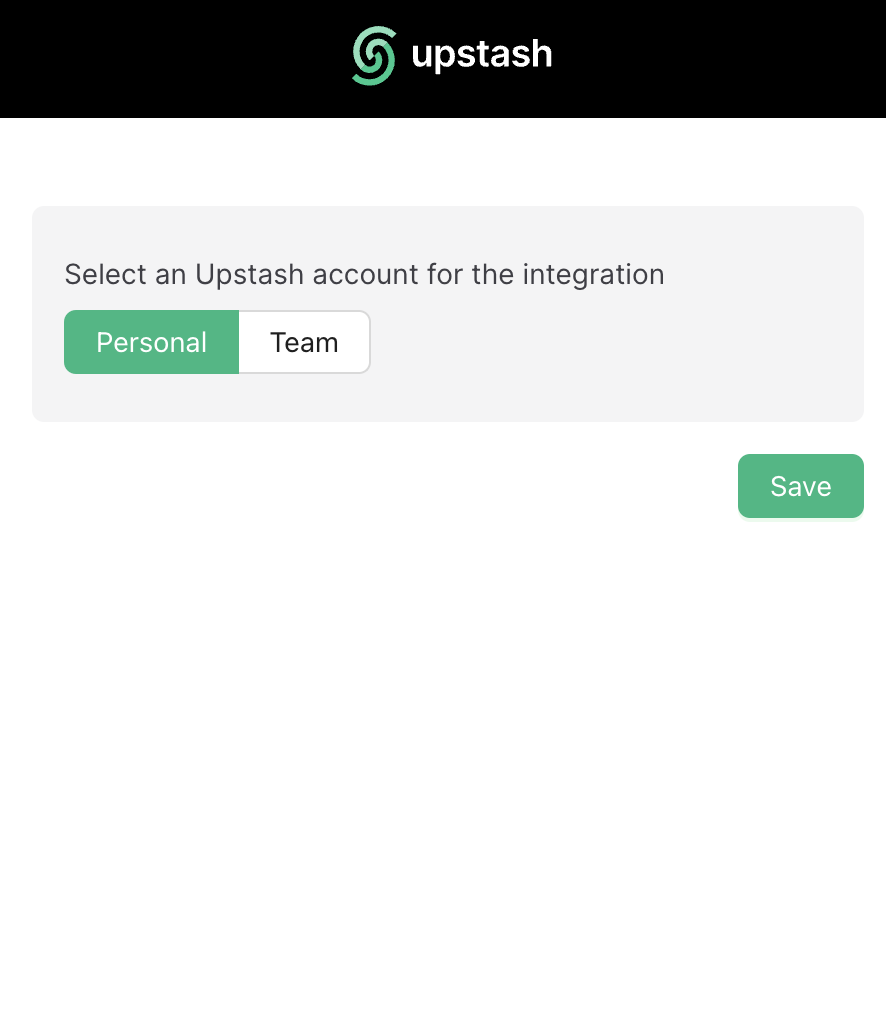
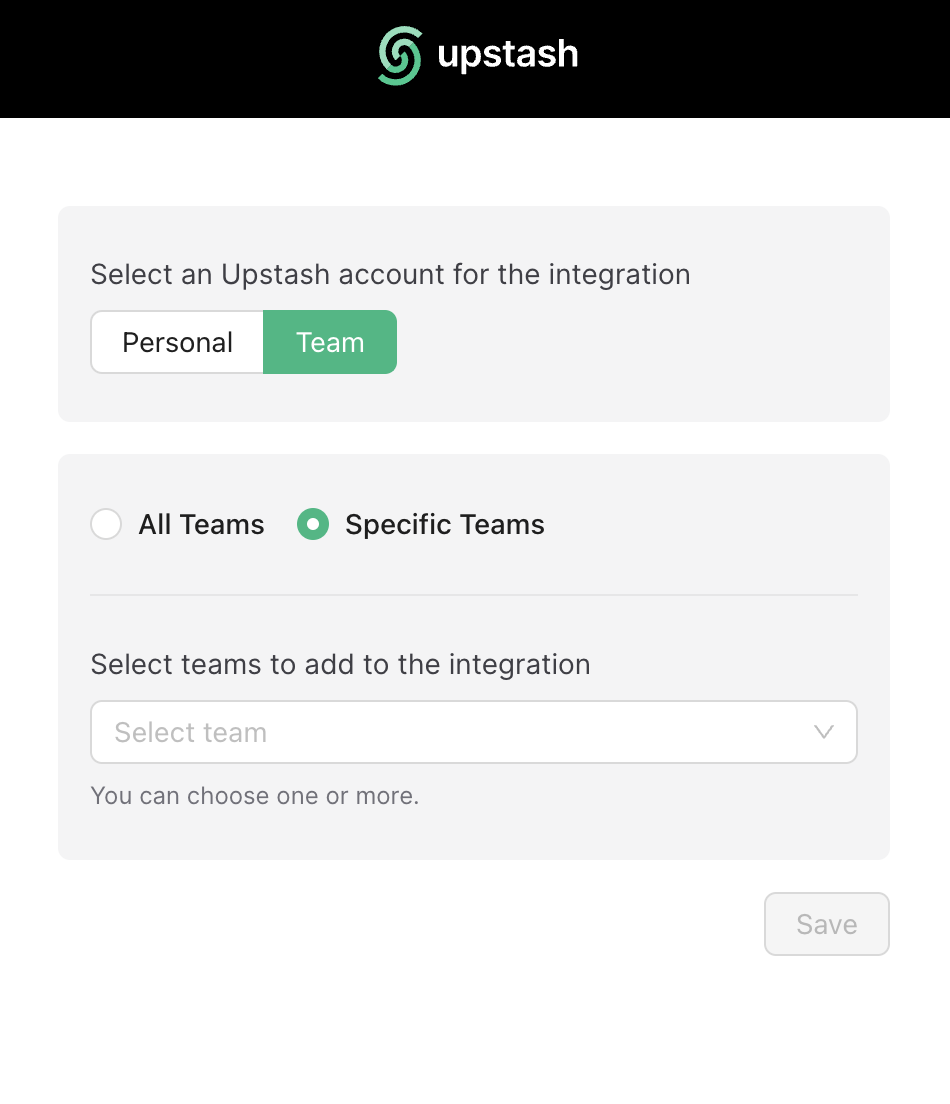
1. On Upstash, select the Datadog account to integrate.
2. Personal and team accounts are supported.
**Caveats**
* The integration can be established once at a time. To change the account scope (e.g., add/remove teams), re-establish the integration from scratch.
## **Step 4: Select Account to Integrate**
1. On Upstash, select the Datadog account to integrate.
2. Personal and team accounts are supported.
**Caveats**
* The integration can be established once at a time. To change the account scope (e.g., add/remove teams), re-establish the integration from scratch.
 ## **Step 5: Wait for Metrics Availability**
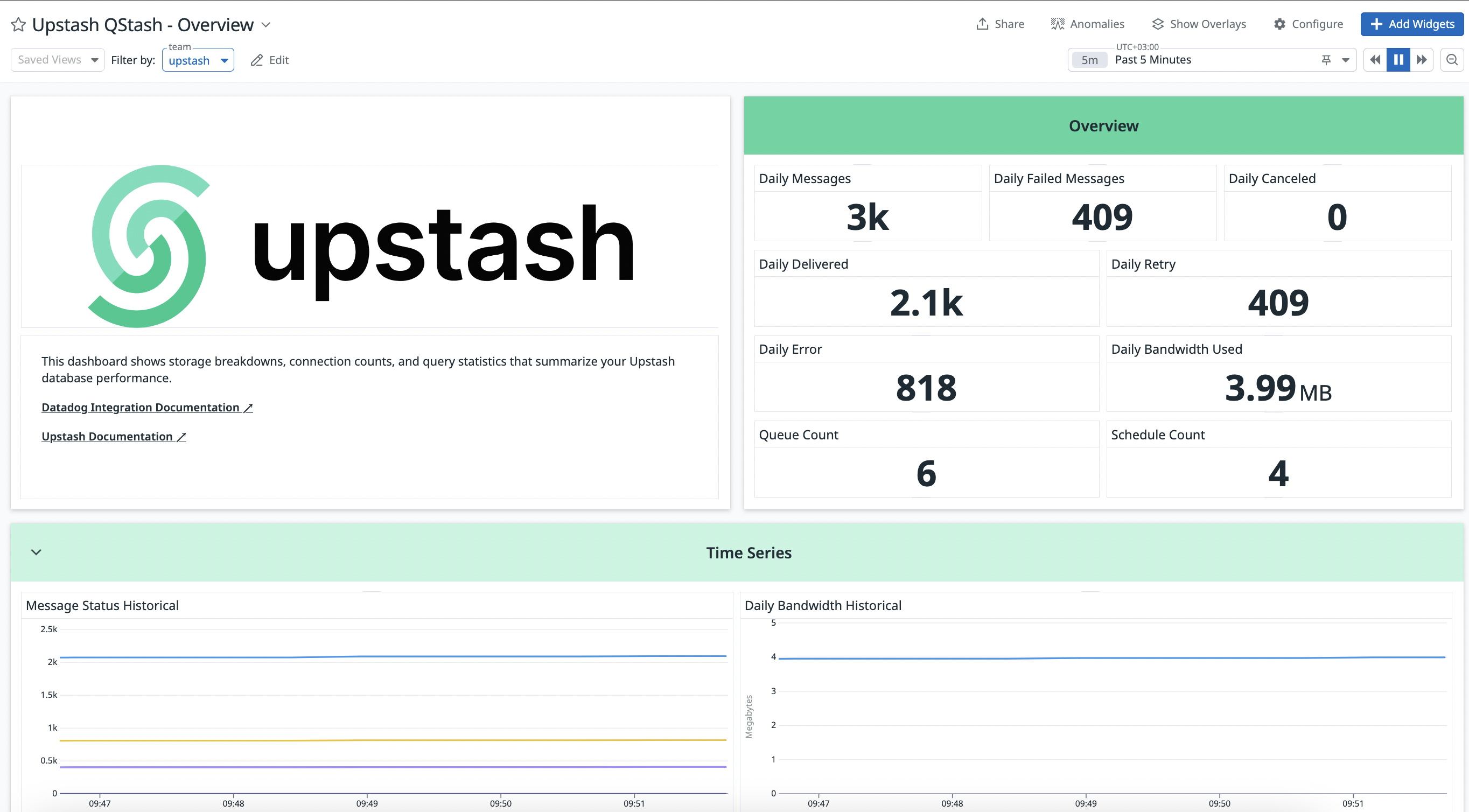
Once the integration is completed, metrics from QStash (publish counts, success/error rates, retries, DLQ, schedule executions) will start appearing in Datadog dashboards shortly.
## **Step 5: Wait for Metrics Availability**
Once the integration is completed, metrics from QStash (publish counts, success/error rates, retries, DLQ, schedule executions) will start appearing in Datadog dashboards shortly.
 ## **Step 6: Datadog Integration Removal Process**
From Datadog → Integrations → Upstash, press "Remove" to break the connection.
### Confirm Removal
Upstash will stop publishing metrics after removal. Ensure any Datadog API keys/configurations for this integration are also removed on the Datadog side.
## **Conclusion**
You’ve connected Datadog with Upstash QStash. Explore Datadog dashboards to monitor message delivery performance and reliability.
If you need help, contact support.
## **Step 6: Datadog Integration Removal Process**
From Datadog → Integrations → Upstash, press "Remove" to break the connection.
### Confirm Removal
Upstash will stop publishing metrics after removal. Ensure any Datadog API keys/configurations for this integration are also removed on the Datadog side.
## **Conclusion**
You’ve connected Datadog with Upstash QStash. Explore Datadog dashboards to monitor message delivery performance and reliability.
If you need help, contact support.