> ## Documentation Index
> Fetch the complete documentation index at: https://upstash.com/docs/llms.txt
> Use this file to discover all available pages before exploring further.
# Account & Teams
## Create an Account
You can sign up to Upstash using your Amazon, Github or Google accounts. Alternatively you can sign up using
email/password registration if you don't want to use these auth providers, or you
want to sign up using a corporate email address.
We do not access your information other than:
* Your email
* Your name
* Your profile picture and we never share your information with third parties.
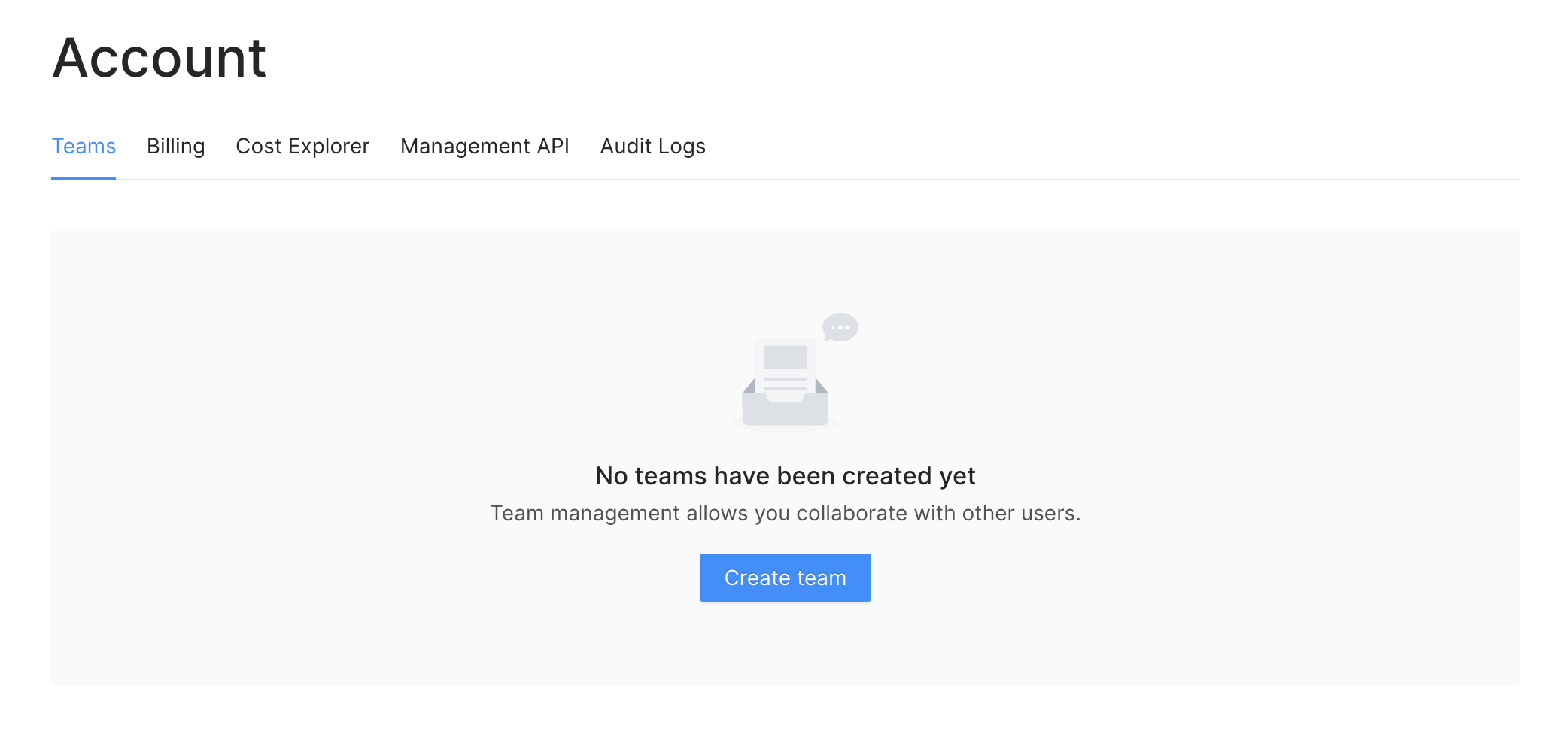
Team management allows you collaborate with other users. You can create a team
and invite people to the team by email addresses. The team members will have
access to the databases created under the team depending on their roles.
 ## Teams
### Create Team
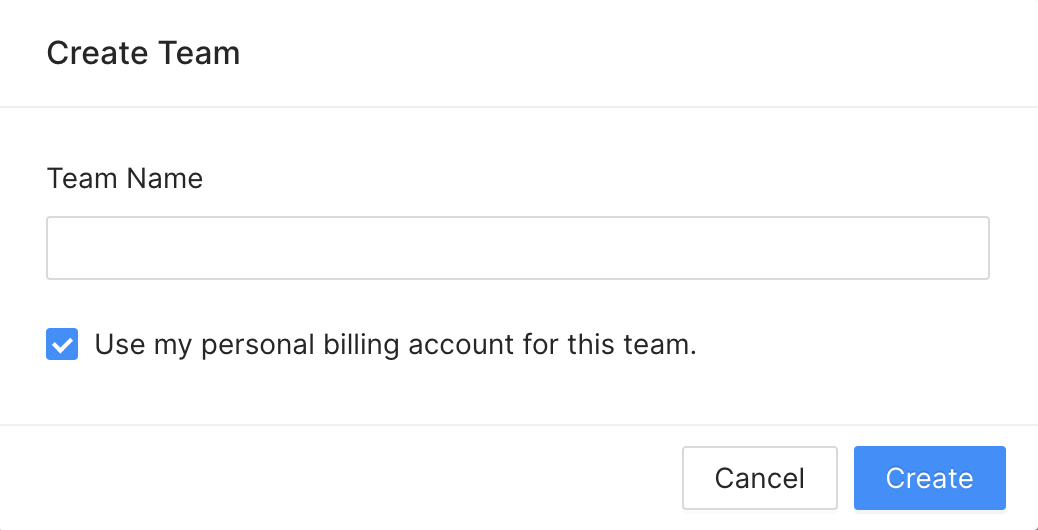
You can create a team using the menu `Account > Teams`
## Teams
### Create Team
You can create a team using the menu `Account > Teams`
 > A user can create up to 5 teams. You can be part of even more teams but only
> be the owner of 5 teams. If you need to own more teams please email us at
> [support@upstash.com](mailto:support@upstash.com).
You can still continue using your personal account or switch to a team.
> The databases in your personal account are not shared with anyone. If you want
> your database to be accessible by other users, you need to create it under a
> team.
### Switch Team
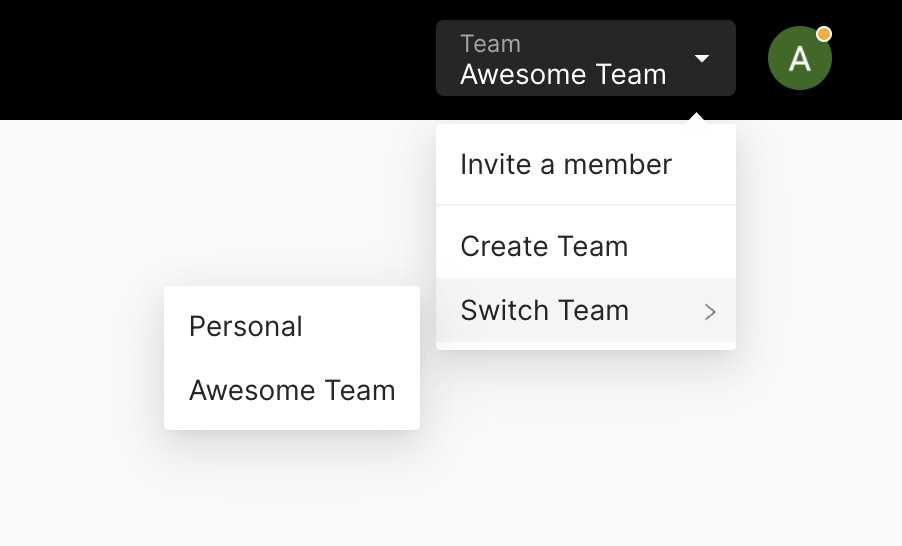
You need to switch to the team to create databases shared with other team
members. You can switch to the team via the switch button in the team table. Or
you can click your profile pic in the top right and switch to any team listed
there.
> A user can create up to 5 teams. You can be part of even more teams but only
> be the owner of 5 teams. If you need to own more teams please email us at
> [support@upstash.com](mailto:support@upstash.com).
You can still continue using your personal account or switch to a team.
> The databases in your personal account are not shared with anyone. If you want
> your database to be accessible by other users, you need to create it under a
> team.
### Switch Team
You need to switch to the team to create databases shared with other team
members. You can switch to the team via the switch button in the team table. Or
you can click your profile pic in the top right and switch to any team listed
there.
 ### Add/Remove Team Member
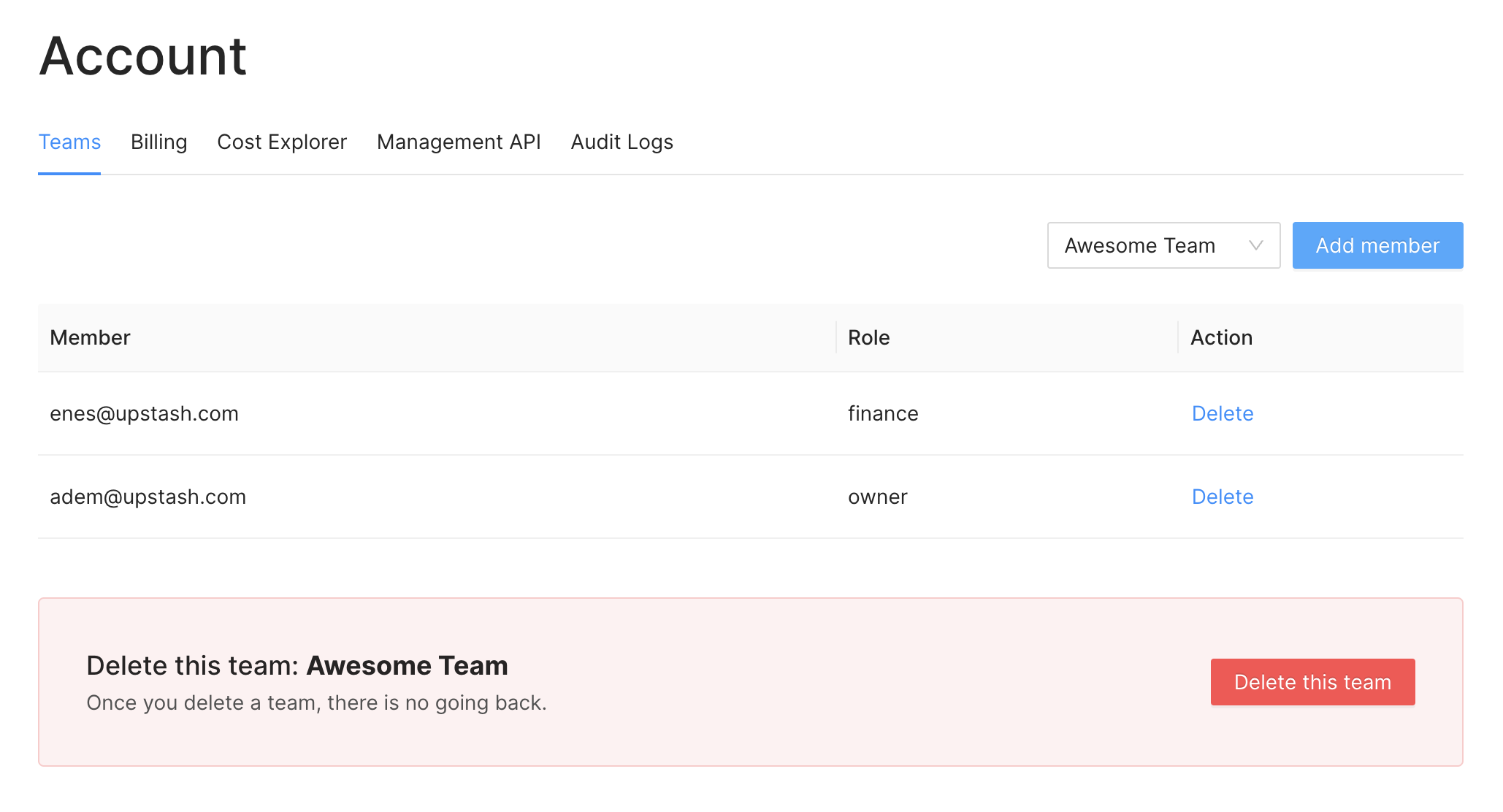
Once you switched to a team, you can add team members in `Account > Teams` if
you are Owner or Admin for of the team. Entering email will be enough. The email
may not registered to Upstash yet, it is not a problem. Once the user registers
with that email, he/she will be able to switch to the team. We do not send
invitation, so when you add a member, he/she becomes a member directly. You can
remove the members from the same page.
> Only Admins or the Owner can add/remove users.
### Add/Remove Team Member
Once you switched to a team, you can add team members in `Account > Teams` if
you are Owner or Admin for of the team. Entering email will be enough. The email
may not registered to Upstash yet, it is not a problem. Once the user registers
with that email, he/she will be able to switch to the team. We do not send
invitation, so when you add a member, he/she becomes a member directly. You can
remove the members from the same page.
> Only Admins or the Owner can add/remove users.
 ### Roles
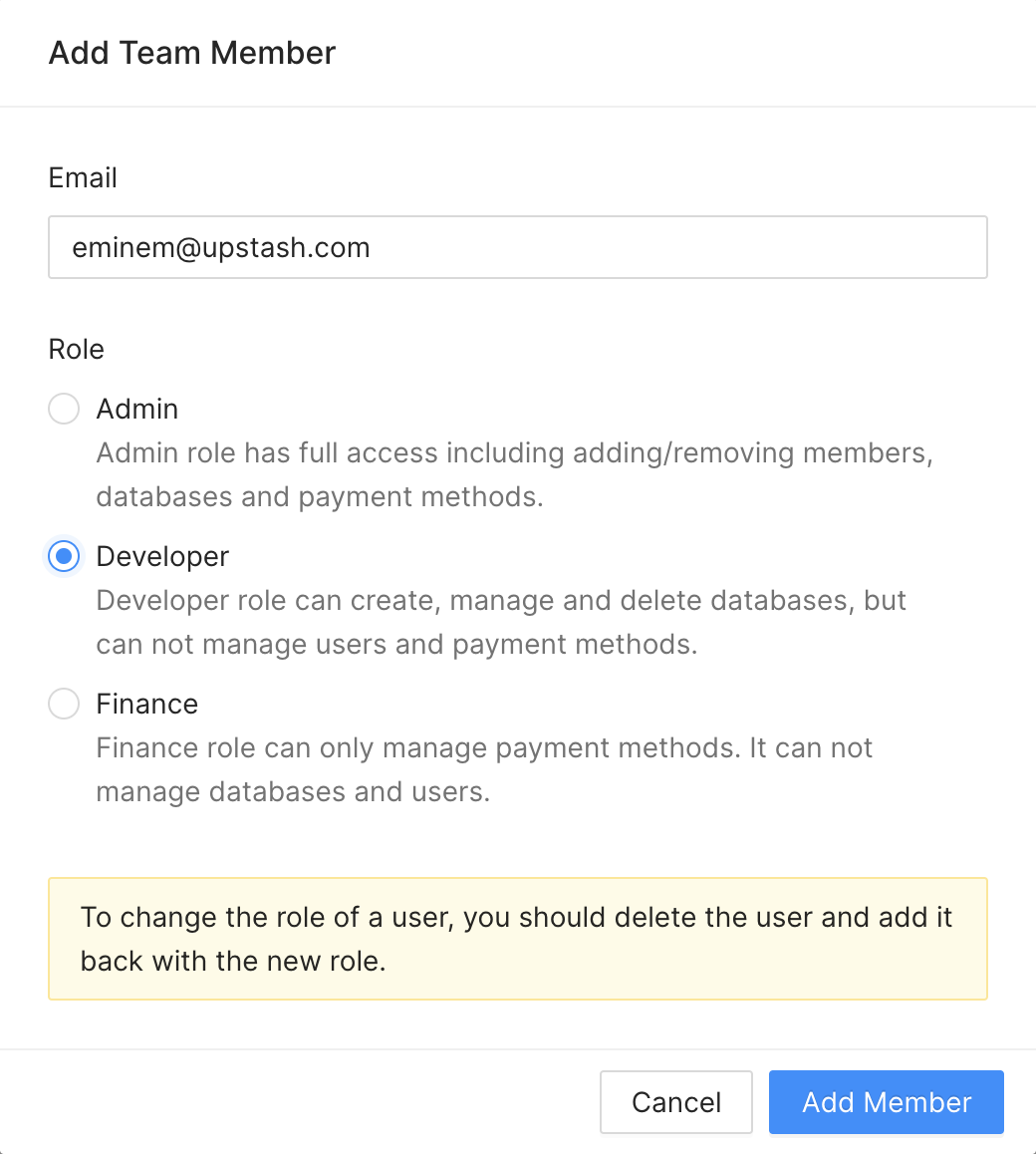
While adding a team member you need to select a role. Here the privileges of
each role:
* Admin: This role has full access including adding removing members, databases,
payment methods.
* Dev: This role can create, manage and delete databases. It can not manage
users and payment methods.
* Finance: This role can only manage payment methods. It can not manage the
databases and users.
* Owner: Owner has all the privileges that admin has. In addition he is the only
person who can delete the team. This role is assigned to the user who created
the team. So you can not create a member with Owner role.
> If you want change role of a user, you need to delete and add again.
### Delete Team
Only the original creator (owner) can delete a team. Also the team should not
have any active databases, namely all databases under the team should be deleted
first. To delete your team, first you need to switch your personal account then
you can delete your team in the team list under `Account > Teams`.
### Roles
While adding a team member you need to select a role. Here the privileges of
each role:
* Admin: This role has full access including adding removing members, databases,
payment methods.
* Dev: This role can create, manage and delete databases. It can not manage
users and payment methods.
* Finance: This role can only manage payment methods. It can not manage the
databases and users.
* Owner: Owner has all the privileges that admin has. In addition he is the only
person who can delete the team. This role is assigned to the user who created
the team. So you can not create a member with Owner role.
> If you want change role of a user, you need to delete and add again.
### Delete Team
Only the original creator (owner) can delete a team. Also the team should not
have any active databases, namely all databases under the team should be deleted
first. To delete your team, first you need to switch your personal account then
you can delete your team in the team list under `Account > Teams`.