> ## Documentation Index
> Fetch the complete documentation index at: https://upstash.com/docs/llms.txt
> Use this file to discover all available pages before exploring further.
# Remote Development
Upstash Box supports full remote development workflows. By forwarding ports over SSH, you can run any web server inside a box and access it in your local browser exactly as if it were running on your machine. You can also expose it to the internet with a public URL for sharing or collaboration.
This guide uses Next.js as an example, but the same approach works for any dev server; Vite, Django, Rails, Express, and so on.
***
## 1. Create a Box
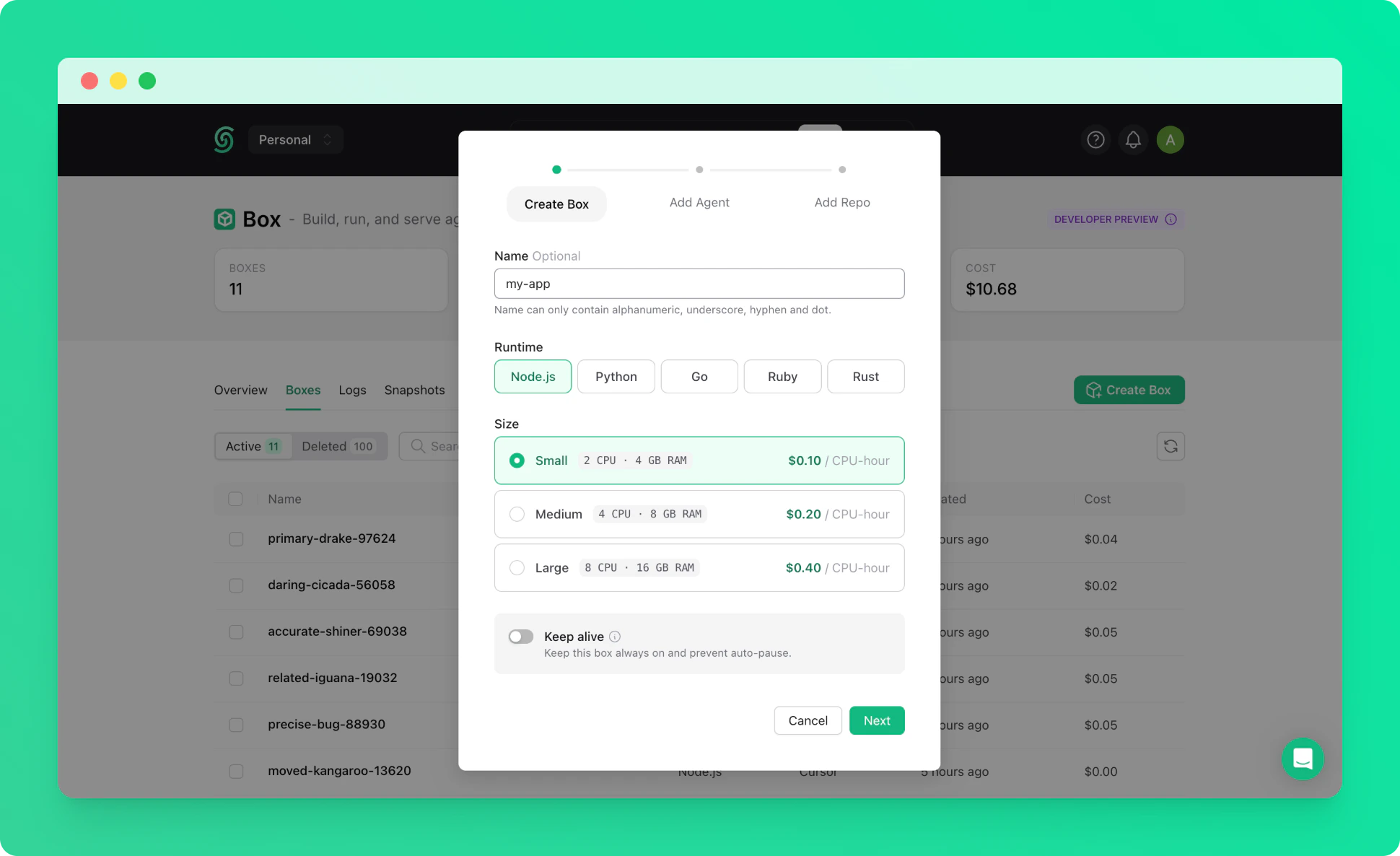
Create a box with default settings. See the [quickstart](/box/overall/quickstart) if you haven't created one before.
 ***
## 2. Connect via SSH with Port Forwarding
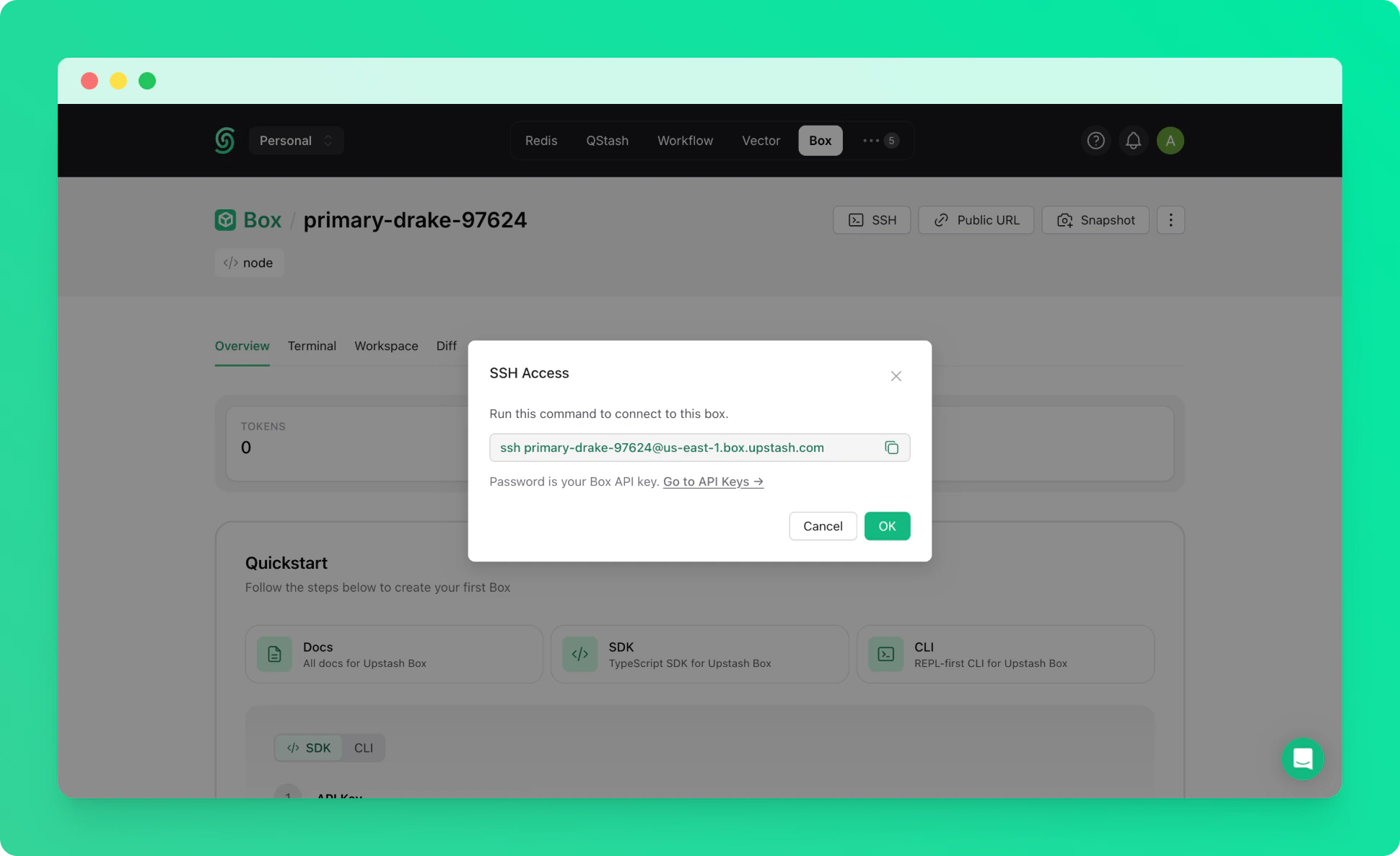
Connect to your box via SSH with the `-L` flag to forward a port from the box to your local machine. Replace `3000` with whichever port your dev server listens on.
The `box-id` is the name of your box (e.g. `right-flamingo-14486`).
```bash theme={"system"}
ssh -L 3000:127.0.0.1:3000 @us-east-1.box.upstash.com
```
Use your [Box API key](/box/overall/quickstart#1-get-your-api-key) as the password when prompted.
***
## 2. Connect via SSH with Port Forwarding
Connect to your box via SSH with the `-L` flag to forward a port from the box to your local machine. Replace `3000` with whichever port your dev server listens on.
The `box-id` is the name of your box (e.g. `right-flamingo-14486`).
```bash theme={"system"}
ssh -L 3000:127.0.0.1:3000 @us-east-1.box.upstash.com
```
Use your [Box API key](/box/overall/quickstart#1-get-your-api-key) as the password when prompted.
 ***
## 3. Start Your Dev Server
Inside the box, start your application. You can set it up manually or ask the built-in agent to build one for you. For example, with Next.js:
```bash theme={"system"}
npx create-next-app@latest my-app
cd my-app
npm run dev
```
Because the SSH tunnel is active, your app is immediately accessible in your local browser at:
```
http://localhost:3000
```
You can edit files inside the box and see changes live, just as you would in a local development environment.
***
## 4. Share with a Public URL (Optional)
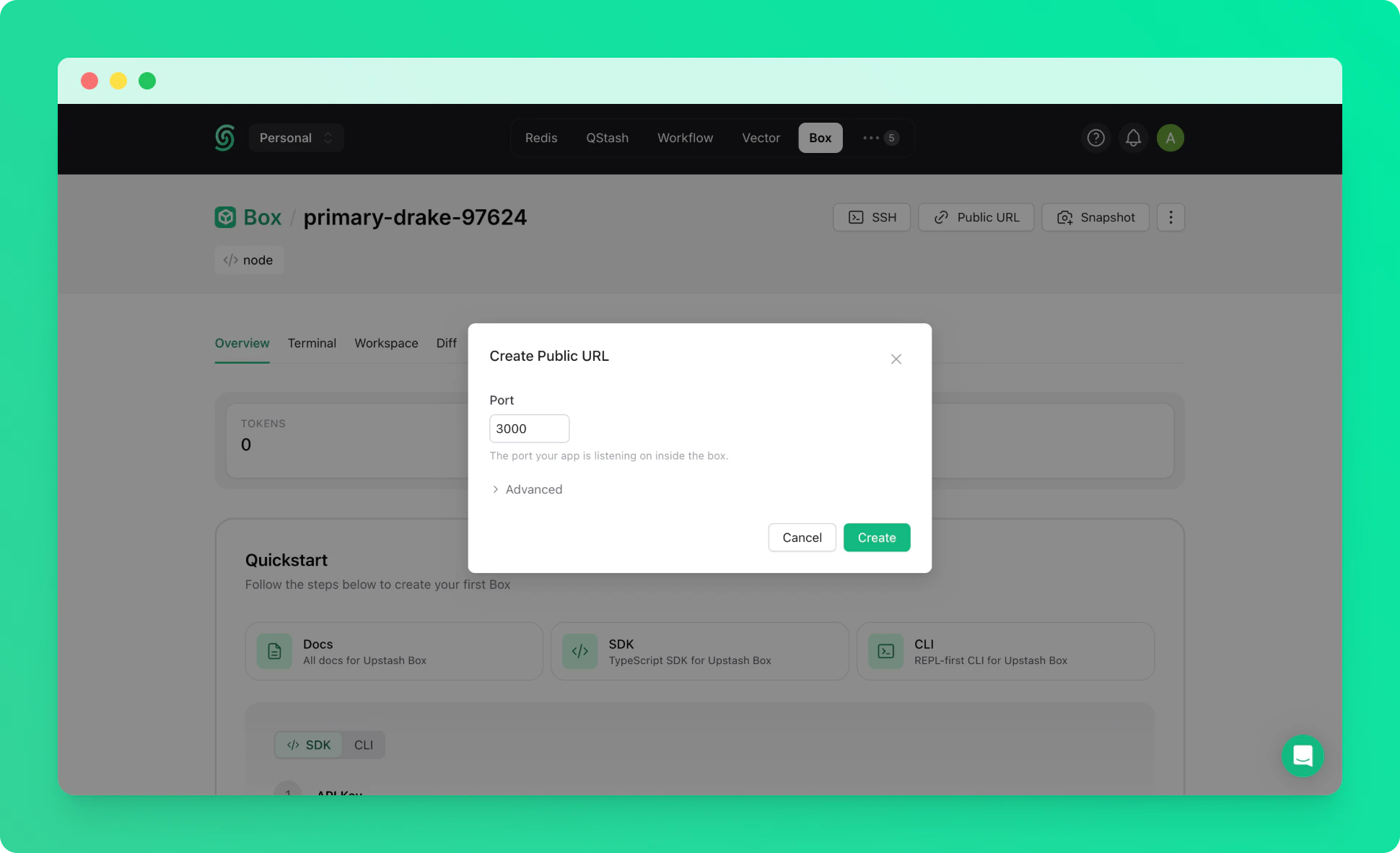
If you want to share your app with others, you can expose a port with a public URL from the [Upstash Console](https://console.upstash.com). See the [Public URLs](/box/overall/preview) guide for details.
Your app will be accessible at:
```
https://-3000.preview.box.upstash.com
```
***
## 3. Start Your Dev Server
Inside the box, start your application. You can set it up manually or ask the built-in agent to build one for you. For example, with Next.js:
```bash theme={"system"}
npx create-next-app@latest my-app
cd my-app
npm run dev
```
Because the SSH tunnel is active, your app is immediately accessible in your local browser at:
```
http://localhost:3000
```
You can edit files inside the box and see changes live, just as you would in a local development environment.
***
## 4. Share with a Public URL (Optional)
If you want to share your app with others, you can expose a port with a public URL from the [Upstash Console](https://console.upstash.com). See the [Public URLs](/box/overall/preview) guide for details.
Your app will be accessible at:
```
https://-3000.preview.box.upstash.com
```