> ## Documentation Index
> Fetch the complete documentation index at: https://upstash.com/docs/llms.txt
> Use this file to discover all available pages before exploring further.
# OpenClaw Setup
This guide walks you through setting up [OpenClaw](https://docs.openclaw.ai) inside an Upstash Box.
***
## 1. Create a Box
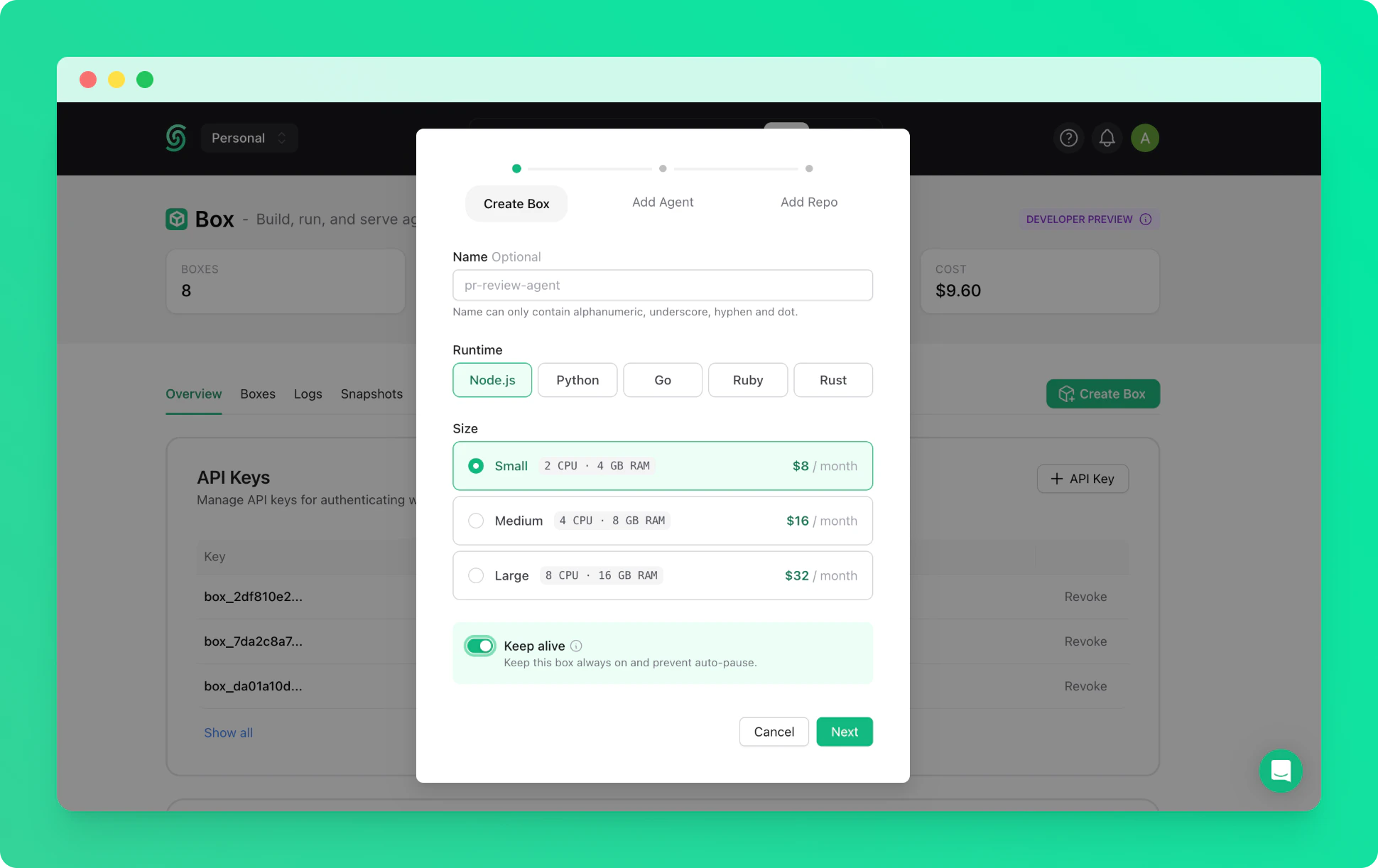
Create a keep-alive box with default settings. See the [quickstart](/box/overall/quickstart) if you haven't created one before.
 ***
## 2. Connect via SSH
Once the box is running, connect to it via SSH from your terminal. The `-L` flag forwards the OpenClaw dashboard port to your local machine. Use your [Box API key](/box/overall/quickstart#1-get-your-api-key) as the password when prompted.
```bash theme={"system"}
ssh -o ServerAliveInterval=15 -o ServerAliveCountMax=3 -L 18789:127.0.0.1:18789 @us-east-1.box.upstash.com
```
The `box-id` is the name of your box (e.g. `right-flamingo-14486`).
***
## 3. Install OpenClaw
Install the OpenClaw CLI globally inside the box.
```bash theme={"system"}
sudo npm install -g openclaw
```
***
## 4. Run Onboarding
Start the interactive onboarding wizard. The CLI will guide you through provider selection, authentication, and gateway configuration.
```bash theme={"system"}
openclaw onboard --install-daemon
```
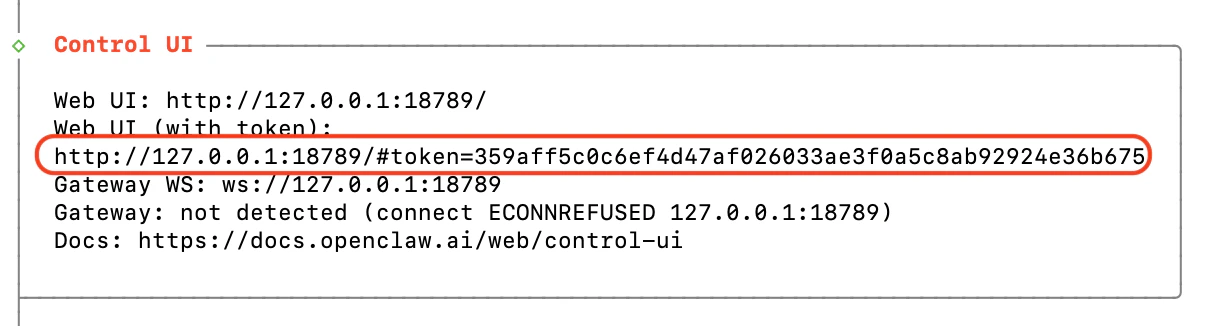
Follow the prompts to complete your setup. Once onboarding is complete, copy the dashboard URL with its token — you will need it in step 6.
***
## 2. Connect via SSH
Once the box is running, connect to it via SSH from your terminal. The `-L` flag forwards the OpenClaw dashboard port to your local machine. Use your [Box API key](/box/overall/quickstart#1-get-your-api-key) as the password when prompted.
```bash theme={"system"}
ssh -o ServerAliveInterval=15 -o ServerAliveCountMax=3 -L 18789:127.0.0.1:18789 @us-east-1.box.upstash.com
```
The `box-id` is the name of your box (e.g. `right-flamingo-14486`).
***
## 3. Install OpenClaw
Install the OpenClaw CLI globally inside the box.
```bash theme={"system"}
sudo npm install -g openclaw
```
***
## 4. Run Onboarding
Start the interactive onboarding wizard. The CLI will guide you through provider selection, authentication, and gateway configuration.
```bash theme={"system"}
openclaw onboard --install-daemon
```
Follow the prompts to complete your setup. Once onboarding is complete, copy the dashboard URL with its token — you will need it in step 6.
 ***
## 5. Start the Gateway
Configure the gateway to bind on the LAN interface, then start it.
```bash theme={"system"}
openclaw config set gateway.bind lan
nohup openclaw gateway > gateway.log 2>&1 &
```
***
## 6. Open the Dashboard
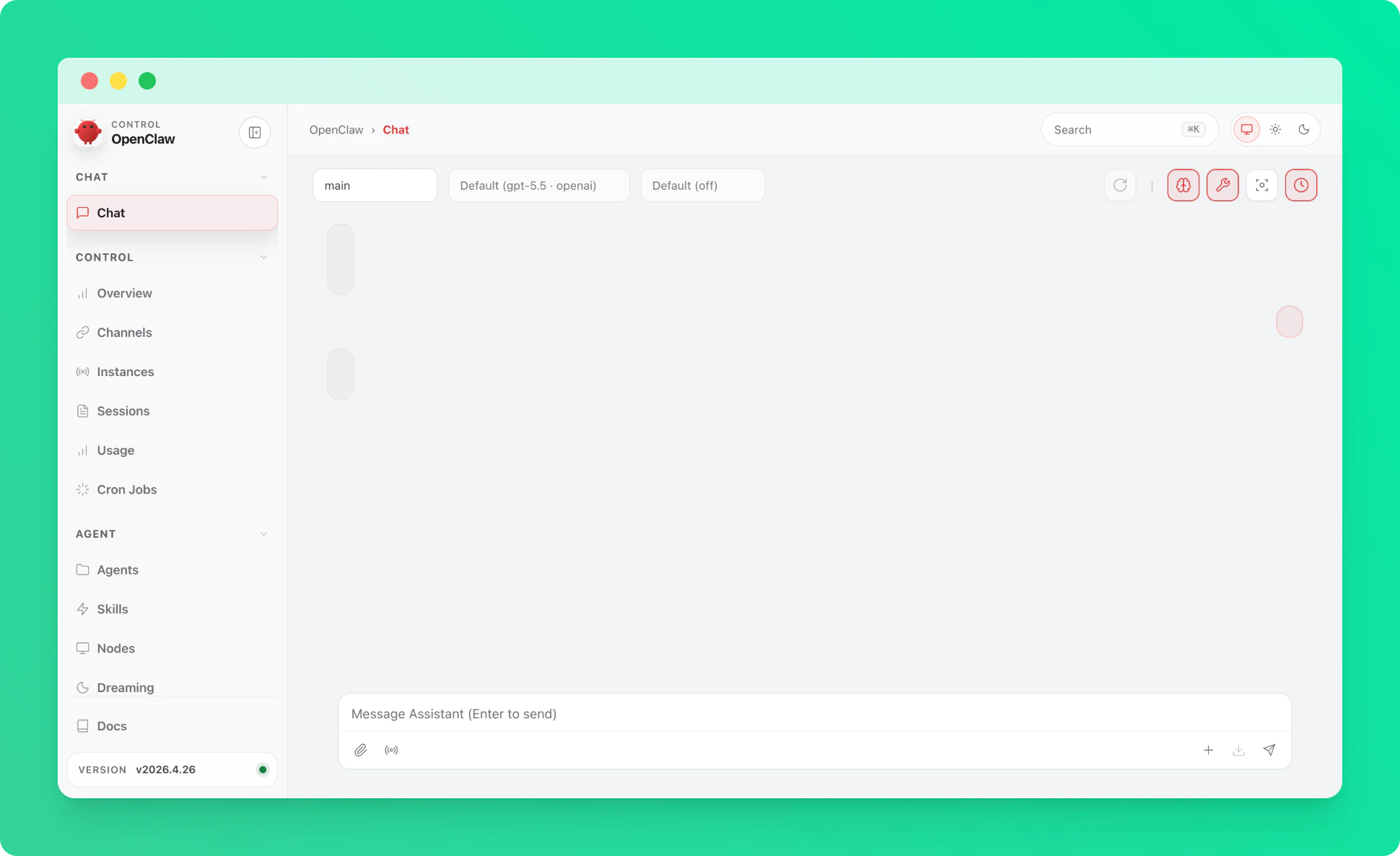
Navigate to the dashboard URL you copied in step 4. Because the SSH tunnel is active, the dashboard is accessible on your local machine and will look like:
```
http://127.0.0.1:18789/#token=
```
Congratulations! You have successfully set up OpenClaw on your Upstash Box. Your AI gateway is now running and accessible through the secure SSH tunnel.
***
## 5. Start the Gateway
Configure the gateway to bind on the LAN interface, then start it.
```bash theme={"system"}
openclaw config set gateway.bind lan
nohup openclaw gateway > gateway.log 2>&1 &
```
***
## 6. Open the Dashboard
Navigate to the dashboard URL you copied in step 4. Because the SSH tunnel is active, the dashboard is accessible on your local machine and will look like:
```
http://127.0.0.1:18789/#token=
```
Congratulations! You have successfully set up OpenClaw on your Upstash Box. Your AI gateway is now running and accessible through the secure SSH tunnel.
 ***
## 7. Set Init Script for Auto-Restart
To ensure the gateway restarts automatically if the box crashes, set the startup command as an init script from the Upstash Console.
***
## 7. Set Init Script for Auto-Restart
To ensure the gateway restarts automatically if the box crashes, set the startup command as an init script from the Upstash Console.
 The init script to use:
```bash theme={"system"}
nohup openclaw gateway > gateway.log 2>&1 &
```
This command runs automatically whenever the box starts, so your gateway is always available without manual intervention.
***
## Troubleshooting
If your SSH session freezes randomly during onboarding, retry the connection with a clean config and no shared control socket:
```bash theme={"system"}
ssh -F /dev/null -o ControlMaster=no -o ServerAliveInterval=15 -o ServerAliveCountMax=3 -L 18789:127.0.0.1:18789 @us-east-1.box.upstash.com
```
The most likely causes are a local `~/.ssh/config` entry (e.g. a stale `ControlMaster` socket or conflicting options) being applied to the connection, or a NAT/firewall on your network dropping idle TCP connections. The flags above bypass your local SSH config and keep the connection active with periodic keepalives.
The init script to use:
```bash theme={"system"}
nohup openclaw gateway > gateway.log 2>&1 &
```
This command runs automatically whenever the box starts, so your gateway is always available without manual intervention.
***
## Troubleshooting
If your SSH session freezes randomly during onboarding, retry the connection with a clean config and no shared control socket:
```bash theme={"system"}
ssh -F /dev/null -o ControlMaster=no -o ServerAliveInterval=15 -o ServerAliveCountMax=3 -L 18789:127.0.0.1:18789 @us-east-1.box.upstash.com
```
The most likely causes are a local `~/.ssh/config` entry (e.g. a stale `ControlMaster` socket or conflicting options) being applied to the connection, or a NAT/firewall on your network dropping idle TCP connections. The flags above bypass your local SSH config and keep the connection active with periodic keepalives.